InSpatio-World: Exploring Real-Time 4D Simulation with Spatiotemporal Models
What is InSpatio-World: Exploring Real-Time 4D Simulation with Spatiotemporal Models
InSpatio-World is a real time 4D world simulator that turns a single video into a controllable scene. You can move the camera through space and even pause or play with time while the world stays steady and follows physics.
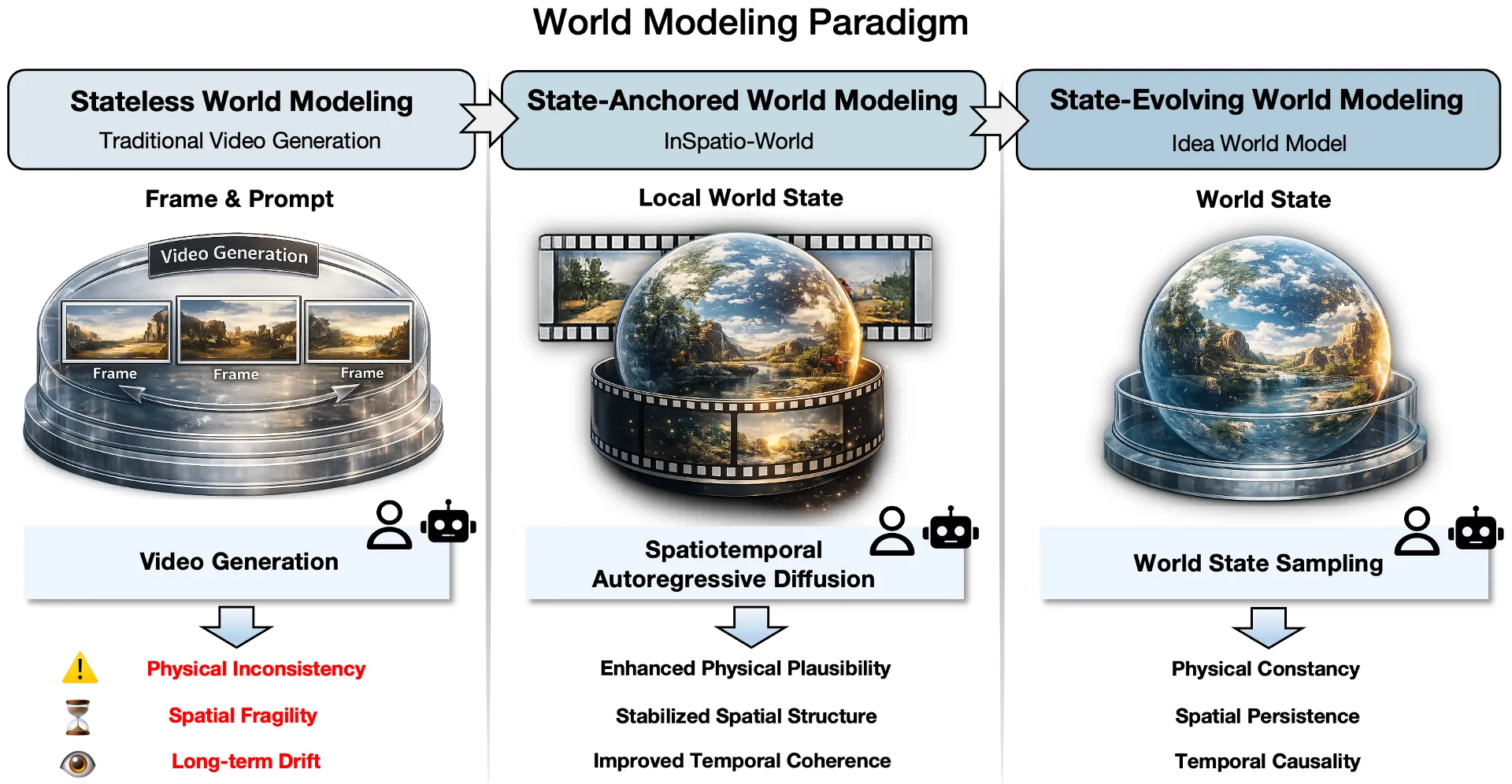
It builds a stable world state from your input video. Then it lets you sample new views and moments so results feel consistent from frame to frame.
InSpatio-World: Exploring Real-Time 4D Simulation with Spatiotemporal Models Overview
Here is a quick summary of what the project offers and how it works.
| Item | Details |
|---|---|
| Type | Real time 4D world simulator from video |
| Purpose | Turn a single video into a stable, controllable world for new views and time control |
| Main Features | State anchored world state, spatiotemporal autoregression, joint distribution matching distillation |
| Input | One or more MP4 video files |
| Output | Novel view videos based on a camera path, plus temporal edits like freeze and resume |
| Model Size | 1.3B main checkpoint with support tools for captions and depth |
| Requirements | Python 3.10, CUDA 12.1, NVIDIA GPU |
| Key Tools | Florence 2 for captions, DA3 for depth, Wan2.1 backbone, TAE option for speed |
| How You Control It | Camera path file with pitch, yaw, and displacement over time |
| Speed Options | Switch to TAE, compile DiT, reach up to 24 fps on an H series NVIDIA GPU after warm up |
| Best For | Content creators, researchers, interactive demos, driving scenes |
| Project Site | Visit the InSpatio-World page to learn more and see examples |
For related work and context from the same research family, see our short overview at Bytedance.
InSpatio-World: Exploring Real-Time 4D Simulation with Spatiotemporal Models Key Features
- Builds a lasting local world state from a reference video so objects keep their place in 3D space.
- Keeps physics in check with gravity, collisions, and inertia so motion feels natural.
- Lets you roam freely by changing viewpoint while staying linked to the same world state.
- Offers time control such as freeze and hold frames, then resume motion.
- Works end to end with a simple test script that runs captions, depth, and view synthesis.
InSpatio-World: Exploring Real-Time 4D Simulation with Spatiotemporal Models Use Cases
- Creative camera moves for product shots, travel clips, and vlogs from a single take.
- Freeze time to focus on a key moment, then rotate or dolly for dramatic effects.
- Research on world modeling and long range video consistency.
- Driving scene view changes with rotation only control.
If you are exploring 4D content systems, you may also like our quick read on the Ex 4D system for contrast and ideas.
Performance & Showcases
Showcase 1 — Code Demo arXiv This is the core project reel that highlights the full system in action. It points to Code Demo arXiv so you can trace the steps from method to working results.
Showcase 2 — Free Spatial Roaming Watch the camera travel through space while the scene stays stable. This shows what Free Spatial Roaming looks like in practice.
Showcase 3 — Free Spatial Roaming Another clip of Free Spatial Roaming, showing smooth motion across angles with good depth feel. You can see objects hold steady across changes in viewpoint.
Showcase 4 — Free Spatial Roaming A third Free Spatial Roaming demo to stress long camera paths. World details persist as the viewpoint moves.
Showcase 5 — Temporal Control Here the focus is time editing. Temporal Control lets you freeze motion for a set number of frames, then continue.
Showcase 6 — Temporal Control A second Temporal Control example shows how freeze frame choice and duration make different story beats. It is helpful for dramatic pauses or emphasis.
How InSpatio-World Works
The project is built on three simple ideas. The world should respect physics, objects should keep their place in space even off camera, and changes over time should follow cause and effect.
To do this, the system does not just draw pixels. It keeps a local world state that it grows and updates over time.
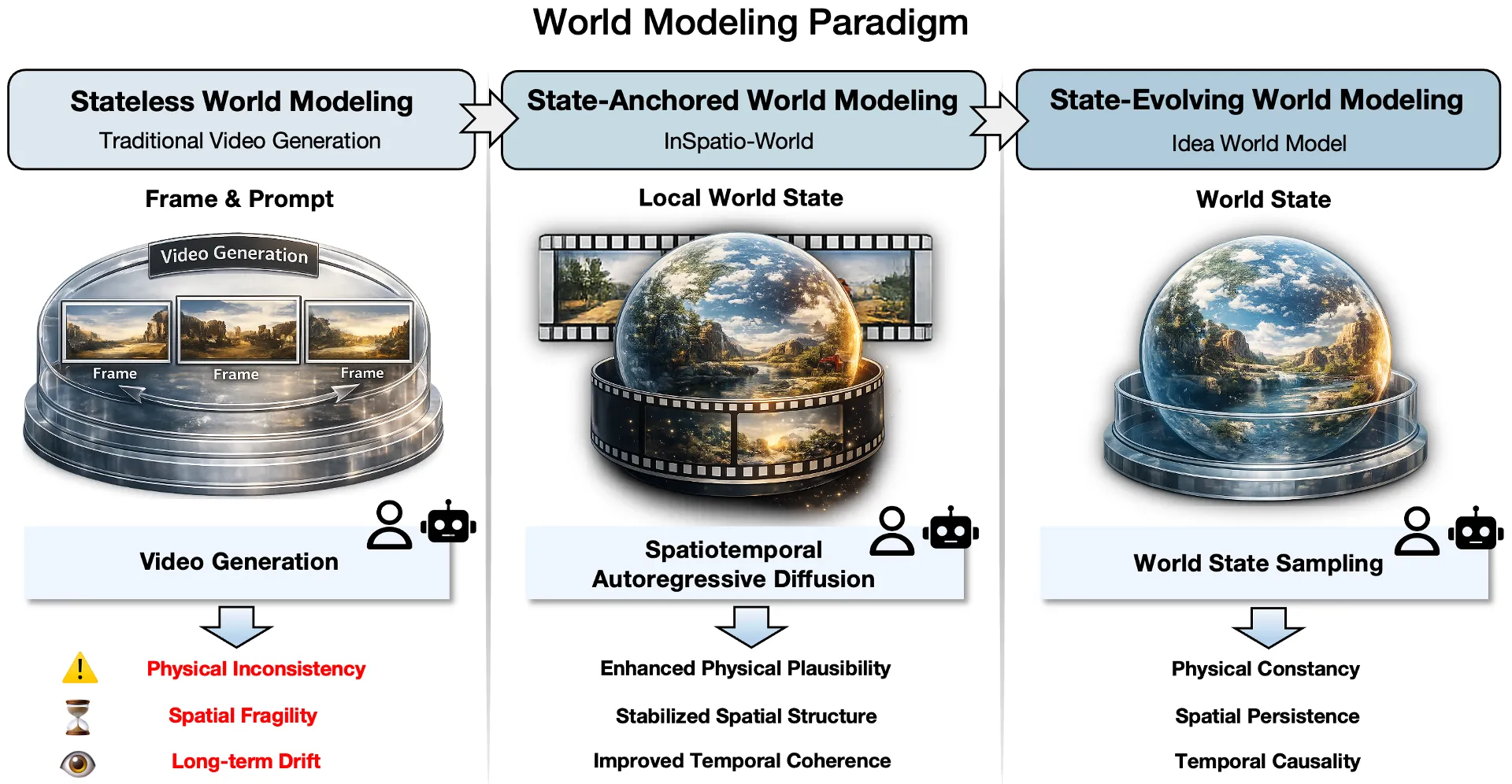
This state is anchored to a reference video. New views and time steps are sampled from this same state, so the output stays stable across long sequences.
The Technology Behind It
Spatiotemporal autoregression is the sampling process that picks what to show next in space and time. It is guided by the reference video and the current world state.
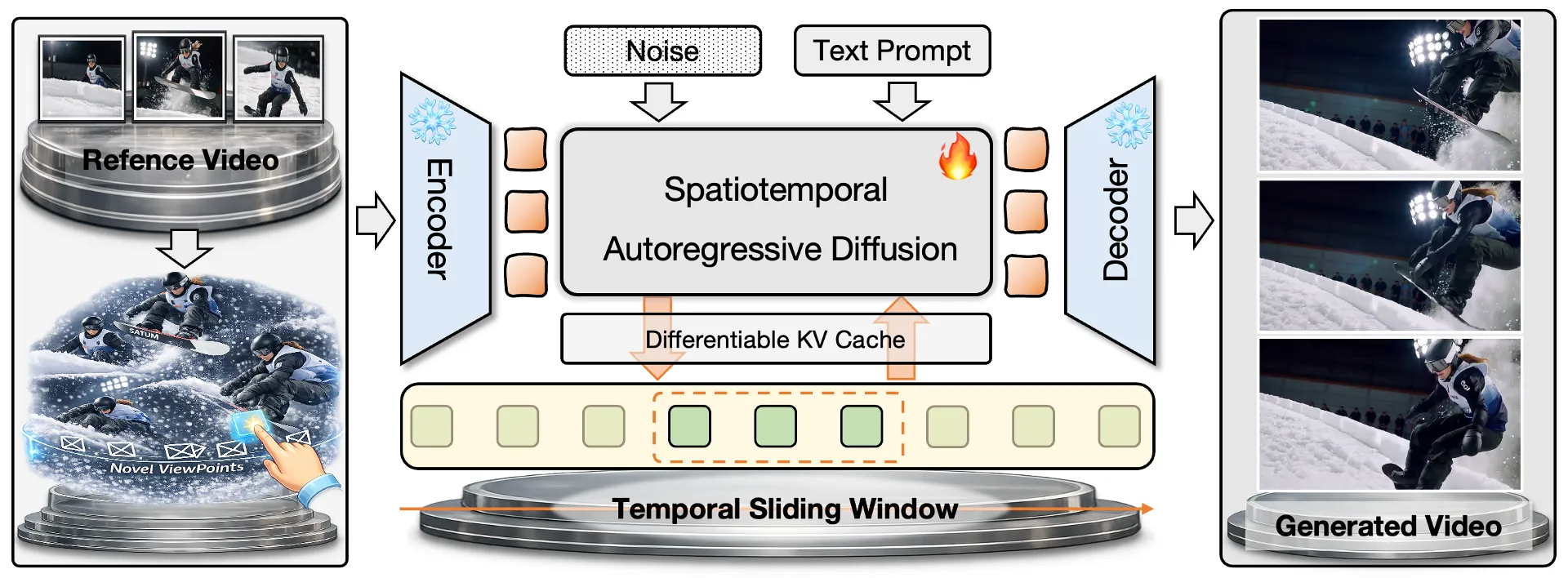
Joint distribution matching distillation teaches the model to balance real video quality with user control. This helps it generalize under interaction and avoid drift.
For a friendly primer on world focused systems, take a look at our short note on the Os World project.
Installation & Setup
Follow these steps in order. Copy commands exactly as shown.
Requirements
- Python 3.10
- CUDA 12.1
- Create conda environment:
conda env create -f environment.yml
conda activate inspatio_world
- Install flash-attn:
pip install https://github.com/Dao-AILab/flash-attention/releases/download/v2.7.4.post1/flash_attn-2.7.4.post1+cu12torch2.5cxx11abiFALSE-cp310-cp310-linux_x86_64.whl
Model Weights
Download the following model checkpoints into the checkpoints/ directory:
bash scripts/download.sh
Expected directory structure after downloading:
checkpoints/
├── InSpatio-World-1.3B/
│ └── InSpatio-World-1.3B.safetensors
├── Wan2.1-T2V-1.3B/
├── DA3/
├── Florence-2-large/
└── taehv/
Inference
The full pipeline runs in three steps:
- Step 1 — Generate video captions using Florence-2。
- Step 2 — Estimate depth with DA3, convert to inference format, render point clouds
- Step 3 — Run InSpatio-World v2v inference
All steps are wrapped in a single script:
bash run_test_pipeline.sh \
 --input_dir ./test/example \
 --traj_txt_path ./traj/x_y_circle_cycle.txt
Quick Start
# 1. Place your .mp4 video(s) in a folder
mkdir -p my_videos
cp your_video.mp4 my_videos/

# 2. Run the full pipeline
bash run_test_pipeline.sh \
 --input_dir ./my_videos \
 --traj_txt_path ./traj/x_y_circle_cycle.txt

# 3. Results will be saved to ./output/my_videos/x_y_circle_cycle/
Trajectory Control
The --traj_txt_path argument controls the camera trajectory for novel-view synthesis. Predefined trajectories are provided in the traj/ directory:
Trajectory File Format
A trajectory file is a plain text file with 3 lines, each containing space-separated keyframe values that are automatically interpolated to match the output frame count:
<line 1> pitch (degrees): positive = orbit up, negative = orbit down
<line 2> yaw (degrees): positive = orbit left, negative = orbit right
<line 3> displacement: relative camera displacement scale
Line 3 (displacement) is a relative scale multiplied by the scene's estimated foreground depth:
- When pitch/yaw are non-zero, it controls the orbit radius (typically set to 1)
- When both pitch and yaw are zero, it becomes a dolly zoom: positive = move forward (zoom in), negative = move backward (zoom out)
Skip Already-Completed Steps
If Step 1 or Step 2 outputs already exist, you can skip them:
bash run_test_pipeline.sh \
 --input_dir ./my_videos \
 --traj_txt_path ./traj/x_y_circle_cycle.txt \
 --skip_step1 --skip_step2
Generate Temporal Control Videos
bash run_test_pipeline.sh \
 --input_dir ./test/example \
 --traj_txt_path ./traj/x_y_circle_cycle.txt \
 --freeze_repeat 150 \
 --output_folder ./output/example_freeze_repeat_150 \
 --disable_adaptive_frame
You can control the time stop behavior using two specific parameters: use --freeze_frame to choose which frame to freeze (default middle frame), and --freeze_repeat to determine the duration (number of frames) of the pause.
Autonomous Driving Applications
bash run_test_pipeline.sh \
 --input_dir ./test/example3 \
 --traj_txt_path ./traj/x_y_circle_cycle.txt \
 --relative_to_source \
 --rotation_only \
 --disable_adaptive_frame
Speed Up
bash run_test_pipeline.sh \
 --input_dir ./test/example \
 --traj_txt_path ./traj/x_y_circle_cycle.txt \
 --use_tae \
 --disable_adaptive_frame
You can switch from VAE to TAE to accelerate the process. Furthermore, you can use --compile_dit to further boost the speed, reaching 24 fps on an H-series NVIDIA GPU (1.3B). However, please note that this operation requires a relatively long warm-up time when triggered for the first time. It is suitable for scenarios where you need to deploy as a service and pursue extreme speed.
Tips for Best Results
- Pick a clear input video with steady motion and good lighting. This helps the world state lock in cleanly.
- Try small pitch and yaw changes first, then expand the path once you are happy.
- For long runs or service use, enable compile to reach high frame rates after warm up.
Evaluation and Speed Notes
The method is built for real time and interaction. It keeps objects steady over long sequences and helps avoid drift when you move the camera.
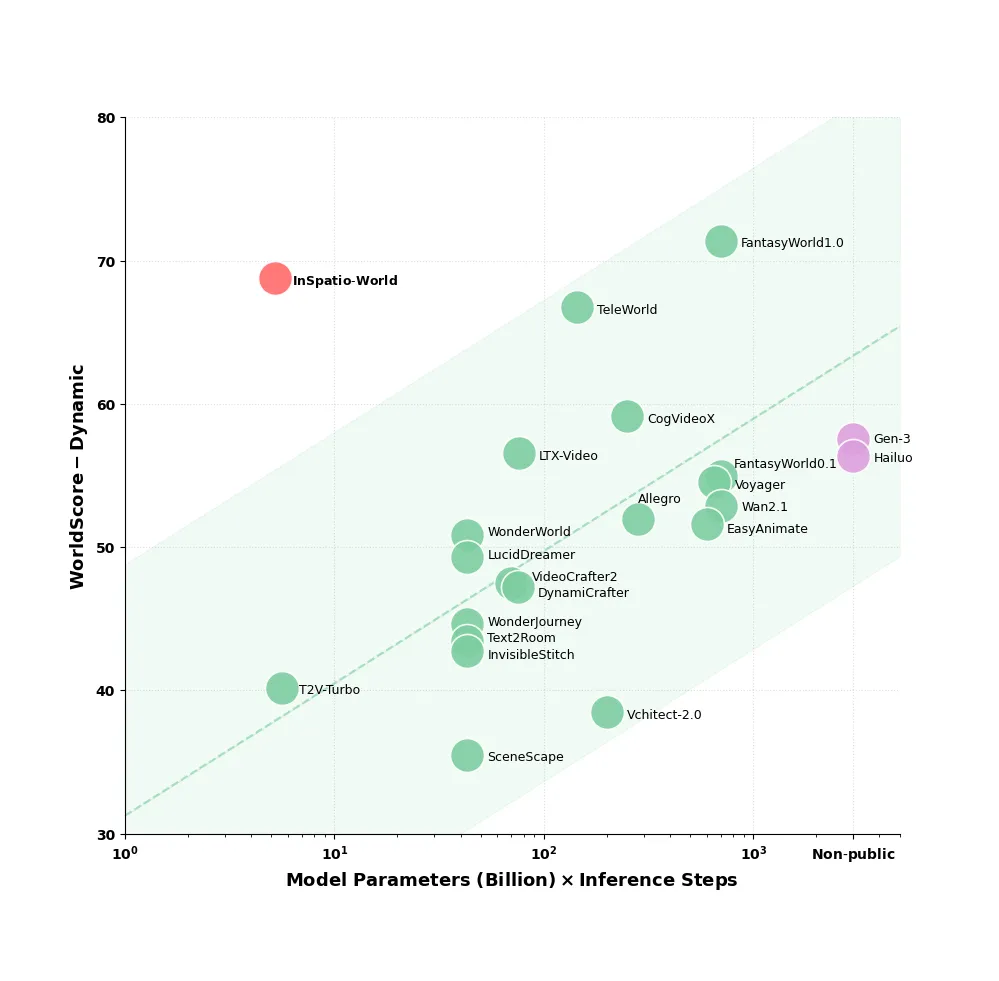
This focus on state and causality matches dynamic quality checks used in world score style tests. It is meant for hands on control, not just short clips.
FAQ
What input do I need to start
You only need a standard MP4 video. Place it in a folder and point the script to that folder.
How do I control the camera path
Use a simple text file with three lines for pitch, yaw, and displacement. The script reads it and makes smooth motion across frames.
Can I freeze time in the middle of the clip
Yes. Set --freeze_frame to pick the frame and --freeze_repeat to set how long the pause lasts.
What hardware should I use
Use a CUDA 12.1 compatible NVIDIA GPU for best results. Python 3.10 is required.
How fast can it run
With the speed flags, TAE, and compiled DiT, the system can reach about 24 fps on an H series NVIDIA GPU after an initial warm up. This is best when you keep the service running.
Does it work for driving scenes
Yes. There is an example command for rotation only control that suits driving views. Use the autonomous driving sample in the setup section.
Read More: A short look at Ex 4D | Os World highlights | Bytedance research hub
Image source: InSpatio-World: Exploring Real-Time 4D Simulation with Spatiotemporal Models