From Text to Sound: How Make-An-Audio Revolutionizes Audio Generation with Diffusion Models
What is From Text to Sound: How Make-An-Audio Changes Audio Generation with Diffusion Models
Make-An-Audio is a research project and open-source toolkit that turns text, images, videos, or even other sounds into new audio. It uses a step-by-step noise-removal process called diffusion to build clean, high-quality sound that matches your prompt. You can use it to generate music-like textures, sound effects, voice-like sounds, and more.
It also supports smart controls. You can fill in missing parts of a clip (audio inpainting), personalize results with a starter sound, and switch input types (X-to-Audio) with the same model. The team built it with PyTorch and shares ready-to-run models, so you can try it on your own machine with a GPU.
From Text to Sound: How Make-An-Audio Changes Audio Generation with Diffusion Models Overview
Here is a quick view of what the project offers.
| Item | Details |
|---|---|
| Project Name | Make-An-Audio |
| Type | Open-source research code (PyTorch) |
| Purpose | Generate audio from text, images, videos, or other audio (X-to-Audio) |
| Main Features | Text-to-Audio, Audio Inpainting, Image-to-Audio, Video-to-Audio, Audio-to-Audio, Personalized prompts, Classifier-free guidance |
| Inputs | Text prompts, Audio clips, Images, Videos |
| Output | WAV audio files (high-quality sound) |
| Core Ideas | Prompt-enhanced diffusion, spectrogram autoencoder, CLAP embeddings |
| Pretrained Models | Make-An-Audio checkpoint, BigVGAN vocoder, CLAP weights |
| Hardware | NVIDIA GPU with CUDA and cuDNN recommended |
| Code Base | Python, PyTorch |
| Demo Page | https://text-to-audio.github.io/ |
If you need a friendly primer on prompt-based sound tools, check our simple overview here: intro to text-to-audio.
From Text to Sound: How Make-An-Audio Changes Audio Generation with Diffusion Models Key Features
- Text-to-Audio: Type a short line like “a bird chirps,” and get a fitting sound.
- Image-to-Audio: Feed a picture and get a sound that matches what is shown.
- Video-to-Audio: Add sound to videos by mapping frames to audio that fits the scene.
- Audio Inpainting: Fix or fill missing parts of an audio clip with a natural result.
- Audio-to-Audio: Use an input sound and prompt to steer the final style or content.
- Personalized Generation: Keep a source sound’s “character” while changing scenes or styles.
- Strong Prompt Control: Use guidance strength to balance faithfulness vs. variety.
From Text to Sound: How Make-An-Audio Changes Audio Generation with Diffusion Models Use Cases
- Film and video: Create sound effects for scenes without a sound library.
- Games: Build ambient loops, creature sounds, or quick prototypes.
- Podcasts and radio: Fill background textures or transitions that match topics.
- Education: Turn a picture or video into sound to aid learning and access.
- Prototyping for artists: Explore ideas fast without recording sessions.
Performance & Showcases
Showcase 1 — Samples from the project These Samples show how the model responds to different prompts across types. You can hear variety while keeping clear links to the text or input.
Showcase 2 — Samples from the project These Samples highlight how the system produces clean sound with good detail. It also shows strong match between inputs and outputs.
Showcase 3 — Samples from the project These Samples cover more prompts and input styles. You can notice how the audio stays relevant to the scene.
Showcase 4 — Samples from the project These Samples include cases where motion or events change over time. The audio keeps up with the change.
Showcase 5 — Samples from the project These Samples test rare or busy scenes. The model still creates sound that fits the prompt.
Showcase 6 — Samples from the project These Samples wrap up the demo set and show steady quality. Prompts and outputs match well.
How It Works (Plain English)
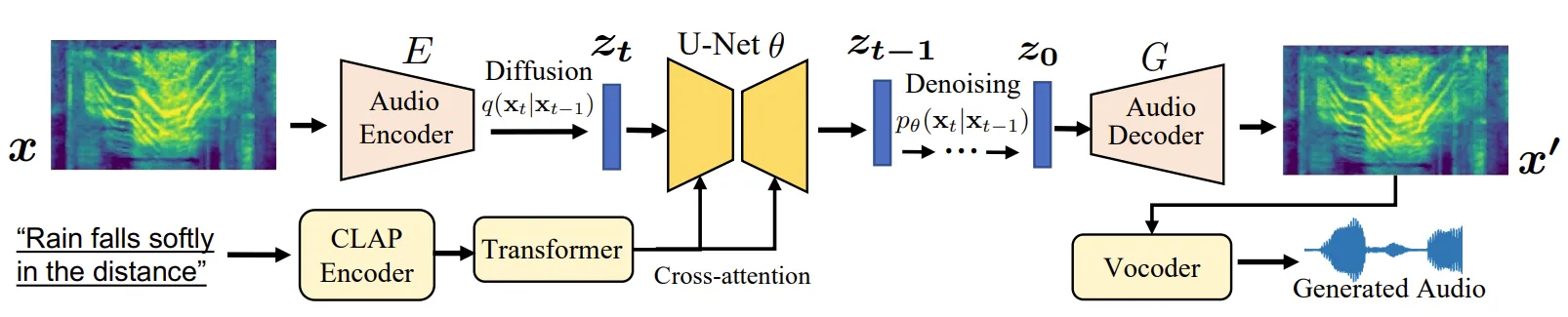
The model starts with noise and slowly shapes it into sound that matches your input. It does this in many small steps, guided by your prompt and learned audio patterns. This helps it create clear and rich audio clips.
To make training easier, the team turns sounds into a picture-like view called a spectrogram. A special autoencoder works on these spectrograms, which are easier to model than raw waveforms. A separate module (CLAP) helps link text to audio, so prompts connect to the right sound.
The Technology Behind It
- Prompt-Enhanced Diffusion: The model boosts prompt quality using extra steps that strengthen the link between text and sound.
- Spectrogram Autoencoder: It predicts a compact sound picture, then a vocoder converts it back to a waveform.
- CLAP Embeddings: It uses learned audio-text features to guide the model toward results that match the prompt.
- Classifier-Free Guidance: You can turn a knob (scale) during inference to control how strongly the model follows your prompt.
If you also work with AI video, you may like this overview of modern tools: text to video methods.
From Text, Image, or Video to Sound
Make-An-Audio supports X-to-Audio, which means you can start from text, image, video, or audio. It can adapt to the input type while keeping prompt control. This helps with video dubbing, image sound design, and source-driven sound edits.
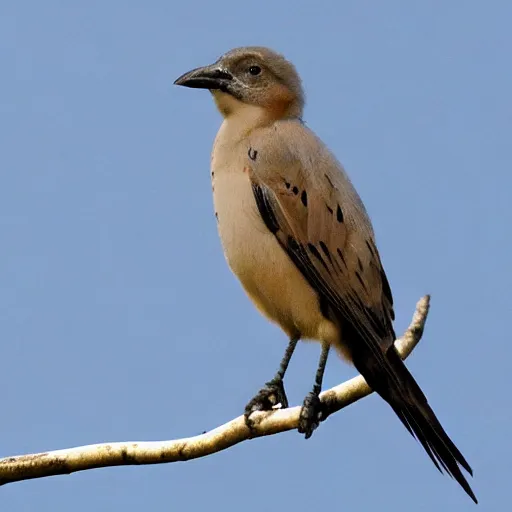
It can also fill gaps (audio inpainting) or reshape a sound with a light touch (audio-to-audio). For example, you can start with thunder and nudge it toward “a baby crying,” while keeping a feel of the original clip.
Installation & Setup (Getting Started)
Below are the exact steps and commands from the project so you can run it on a GPU machine.
Quick note:
- You need an NVIDIA GPU with CUDA and cuDNN.
- Pretrained files are required (see below).
- Dependencies are listed in requirement.txt.
Support Datasets and Pretrained Models
Simply run following command to download the weights from Google drive. Download CLAP weights from Hugging Face.
Download:
 maa1_full.ckpt and put it into ./useful_ckpts
 BigVGAN vocoder and put it into ./useful_ckpts
 CLAP_weights_2022.pth and put it into ./useful_ckpts/CLAP
The directory structure should be:
useful_ckpts/
├── bigvgan
│ ├── args.yml
│ └── best_netG.pt
├── CLAP
│ ├── config.yml
│ └── CLAP_weights_2022.pth
└── maa1_full.ckpt
Inference with pretrained model
Generate your first sound from a text prompt (edit the text, length, and other options if you like):
python gen_wav.py --prompt "a bird chirps" --ddim_steps 100 --duration 10 --scale 3 --n_samples 1 --save_name "results"
Dataset Preparation (for training)
We can't provide the dataset download link for copyright issues. We provide the process code to generate melspec. Before training, we need to construct the dataset information into a tsv file, which includes name (id for each audio), dataset (which dataset the audio belongs to), audio_path (the path of .wav file),caption (the caption of the audio) ,mel_path (the processed melspec file path of each audio). We provide a tsv file of audiocaps test set: ./data/audiocaps_test.tsv as a sample.
Assume you have already got a tsv file to link each caption to its audio_path, which mean the tsv_file have "name","audio_path","dataset" and "caption" columns in it. To get the melspec of audio, run the following command, which will save mels in ./processed
python preprocess/mel_spec.py --tsv_path tmp.tsv --num_gpus 1 --max_duration 10
Train Variational Autoencoder
Assume we have processed several datasets, and save the .tsv files in data/*.tsv . Replace data.params.spec_dir_path with the data(the directory that contain tsvs) in the config file. Then we can train VAE with the following command. If you don't have 8 gpus in your machine, you can replace --gpus 0,1,...,gpu_nums
python main.py --base configs/train/vae.yaml -t --gpus 0,1,2,3,4,5,6,7
The training result will be save in ./logs/
Train Latent Diffusion
After Trainning VAE, replace model.params.first_stage_config.params.ckpt_path with your trained VAE checkpoint path in the config file. Run the following command to train Diffusion model
python main.py --base configs/train/diffusion.yaml -t --gpus 0,1,2,3,4,5,6,7
The training result will be save in ./logs/
Evaluation
Generate audiocaps samples:
python gen_wavs_by_tsv.py --tsv_path data/audiocaps_test.tsv --save_dir audiocaps_gen
Calculate FD,FAD,IS,KL: first install audioldm_eval and then run tests.
git clone git@github.com:haoheliu/audioldm_eval.git
Then test with:
python scripts/test.py --pred_wavsdir {the directory that saves the audios you generated} --gt_wavsdir {the directory that saves audiocaps test set waves}
Calculate Clap_score:
python wav_evaluation/cal_clap_score.py --tsv_path {the directory that saves the audios you generated}/result.tsv
X-To-Audio (Audio-to-Audio)
Run Audio2Audio with an init sound and prompt:
python scripts/audio2audio.py --prompt "a bird chirping" --strength 0.3 --init-audio sample.wav --ckpt useful_ckpts/maa1_full.ckpt --vocoder_ckpt useful_ckpts/bigvgan --config configs/text_to_audio/txt2audio_args.yaml --outdir audio2audio_samples
Tip: Dependencies are listed in requirement.txt (install those to match your system). For help comparing text-to-audio tools and workflows, see our short note on the Goku video generation project and how sound pairs with s.
Why This Project Stands Out
- One system for many inputs: text, image, video, or audio.
- Strong prompt control so you can get closer to the sound in your head.
- Open-source code and checkpoints to test and learn.
FAQ
Do I need a GPU to run Make-An-Audio?
You should use a machine with an NVIDIA GPU, CUDA, and cuDNN for best speed. CPU-only runs are not advised for this project.
How do I get the required checkpoints?
Follow the download notes above and place files exactly in the shown folders. The code blocks list the Make-An-Audio checkpoint, BigVGAN vocoder, and CLAP weights and their target paths.
Can I train on my own data?
Yes, but you must build a TSV file that lists audio paths and captions. Then create mel spectrograms and run the VAE and diffusion training commands shown in the setup section.
Related Reading
If you want a quick tour of prompt-to-sound tools for beginners, see this short piece: helpful text-to-audio guide. For adding sound to motion content, here is a brief overview of modern text to video tools.
Image source: From Text to Sound: How Make-An-Audio Audio Generation with Diffusion Models