Mastering High-Resolution Video Matting with Robust Temporal Guidance
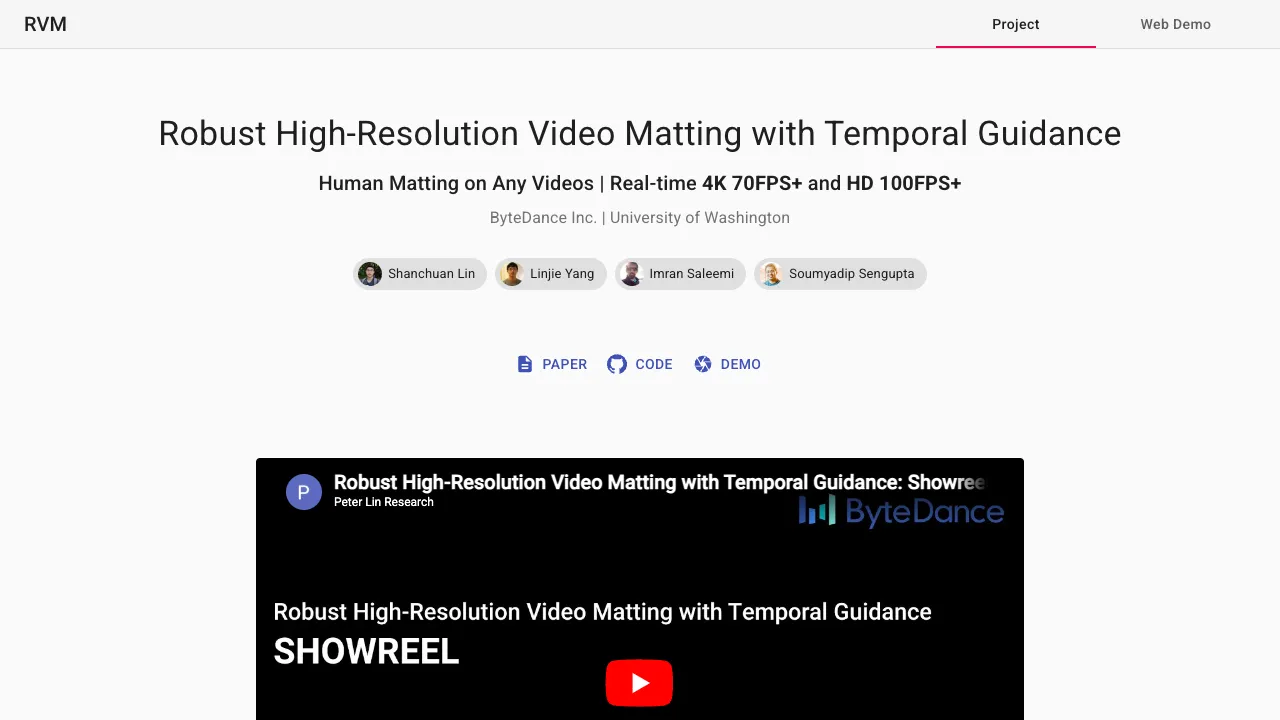
What is Robust High-Resolution Video Matting with Temporal Guidance
This project removes the background from people in videos and keeps fine details like hair and semi-transparent edges. It works fast, even on 4K videos, and it does not need extra help like a trimap or a clean background photo.
It was built by researchers at ByteDance Inc. and the University of Washington. It runs in real time and keeps motion smooth from frame to frame, so results look steady and clean.
Robust High-Resolution Video Matting with Temporal Guidance Overview
Here is a quick look at the project in simple terms.
| Item | Details |
|---|---|
| Type | AI model for human video matting |
| Purpose | Cut out a person from any video and keep hair, edges, and motion looking natural |
| Key Strength | Real-time 4K at 76 FPS and HD at 104 FPS on an Nvidia GTX 1080 Ti |
| Works On | Any video input, no trimap or pre-captured background needed |
| Core Idea | Uses memory across frames (temporal guidance) for stable, smooth results |
| Recommended Model | MobileNetv3 (best for most users); ResNet50 (bigger model, small gains) |
| Outputs | Full composite video, alpha matte (transparency), and foreground |
| Available Formats | PyTorch, TorchScript, ONNX, TensorFlow, TensorFlow.js |
| Demos | Web demo (browser), Colab demo (free GPU) |
| API Options | Simple conversion API, TorchHub model and converter |
| Team | Shanchuan Lin, Linjie Yang, Imran Saleemi, Soumyadip Sengupta |
| From | ByteDance Inc. and University of Washington |
Read More: Open O3 Video
Robust High-Resolution Video Matting with Temporal Guidance Key Features
- Real-time speed: 4K at 76 FPS, HD at 104 FPS on a GTX 1080 Ti.
- No extra inputs: Works without a trimap or a clean background image.
- Smooth motion: Uses memory across frames to keep edges steady over time.
- Multiple outputs: Get composite video, alpha matte, and foreground layers.
- Easy tools: Web demo, Colab demo, and a simple converter API.
- Broad support: PyTorch, TorchScript, ONNX, TensorFlow, and TensorFlow.js.
Robust High-Resolution Video Matting with Temporal Guidance Use Cases
- Virtual backgrounds for video calls and live streams.
- Green-screen style editing without a real green screen.
- Post-production for YouTube, ads, and short-form content.
- Mobile and desktop video apps that need fast, clean people cutouts.
- Game engines and AR effects that need stable human mattes.
How It Works (Plain English)
The model looks at each video frame and also remembers what it saw just before. This memory helps it keep hair and edges steady and avoid flicker.
It learns two jobs at once: fine matting and simple segmentation. Training both together makes the model more stable and less likely to break on hard scenes.
You can feed in any video. The model gives you three things: the person only (foreground), a transparency map (alpha), and a final composite if you want to replace the background.
If you want to learn more about AI video creation basics, check out our text-to-video guide.
Installation & Setup (Getting Started)
Follow these steps to run the model and process videos. Use the exact commands and code as shown.
1) Install dependencies
pip install -r requirements_inference.txt
2) Load the model (PyTorch)
import torch
from model import MattingNetwork

model = MattingNetwork('mobilenetv3').eval().cuda() # or "resnet50"
model.load_state_dict(torch.load('rvm_mobilenetv3.pth'))
Tip: MobileNetv3 is the suggested choice for most users. ResNet50 is larger with small gains.
3) Convert a video with the simple API
from inference import convert_video

convert_video(
 model, # The model, can be on any device (cpu or cuda).
 input_source='input.mp4', # A video file or an image sequence directory.
 output_type='video', # Choose "video" or "png_sequence"
 output_composition='com.mp4', # File path if video; directory path if png sequence.
 output_alpha="pha.mp4", # [Optional] Output the raw alpha prediction.
 output_foreground="fgr.mp4", # [Optional] Output the raw foreground prediction.
 output_video_mbps=4, # Output video mbps. Not needed for png sequence.
 downsample_ratio=None, # A hyperparameter to adjust or use None for auto.
 seq_chunk=12, # Process n frames at once for better parallelism.
)
4) Write your own inference loop
from torch.utils.data import DataLoader
from torchvision.transforms import ToTensor
from inference_utils import VideoReader, VideoWriter

reader = VideoReader('input.mp4', transform=ToTensor())
writer = VideoWriter('output.mp4', frame_rate=30)

bgr = torch.tensor([.47, 1, .6]).view(3, 1, 1).cuda() # Green background.
rec = [None] * 4 # Initial recurrent states.
downsample_ratio = 0.25 # Adjust based on your video.

with torch.no_grad():
 for src in DataLoader(reader): # RGB tensor normalized to 0 ~ 1.
 fgr, pha, *rec = model(src.cuda(), *rec, downsample_ratio) # Cycle the recurrent states.
 com = fgr * pha + bgr * (1 - pha) # Composite to green background.
 writer.write(com) # Write frame.
5) TorchHub option (quick load + converter)
# Load the model.
model = torch.hub.load("PeterL1n/RobustVideoMatting", "mobilenetv3") # or "resnet50"

# Converter API.
convert_video = torch.hub.load("PeterL1n/RobustVideoMatting", "converter")
Notes:
- Models are available across PyTorch, TorchScript, ONNX, TensorFlow, and TensorFlow.js.
- Download weights from the official model links (e.g., Google Drive).
- For help with the downsample_ratio and more options, see the inference docs in the repo.
Performance & Showcases
The team measured speed with a reference script. HD used downsample_ratio=0.25 and 4K used 0.125. Older GPUs like GTX 1080 Ti use FP32; newer ones can use FP16 for more speed.
Showcase 1 — YouTube video player. This clip highlights human matting at high resolution with steady motion and fine hair details. You can view it in a YouTube video player.
Showcase 2 — YouTube video player. This second sample also shows stable matting on moving subjects. It runs inside a YouTube video player for quick viewing.
Tips for Best Results
- Pick a good downsample_ratio. If the scene is very detailed or 4K, start at 0.125. For HD, 0.25 often works well.
- Keep the subject well lit. Clear edges help the alpha matte.
- Use the output_alpha and output_foreground files if you plan to edit later in your video tool.
Tools and Demos
You can try a live webcam demo in your browser and see how the model tracks motion. There is also a Colab demo so you can test on your own videos with a free GPU.
There are third-party projects too, such as Android and Unity demos. If ByteDance work interests you, see this short read on Goku video generation.
The Technology Behind It
The model uses a memory across frames to keep track of the background and past motion. This helps keep edges stable and reduces flicker.
Training includes both fine matting and a simpler segmentation goal. This mix makes the model steady even in hard scenes, like fast moves or noisy backgrounds.
FAQ
Do I need a green screen?
No. The model does not need a trimap or a clean background. It can work on any normal video.
What output files can I get?
You can save a full composite, the transparency map (alpha), and the isolated person (foreground). These help with later edits.
Which model should I pick?
Use MobileNetv3 for a good balance of speed and quality. ResNet50 is larger and gives small gains.
Can I run this in real time?
Yes on a strong GPU. The team reports 4K at 76 FPS and HD at 104 FPS on a GTX 1080 Ti.
Is there a simple way to try it?
Yes. Use the web demo or the Colab demo. For code, use the TorchHub loader and the converter API.
Image source: ing High-Resolution Video Matting with Robust Temporal Guidance