Puppeteer: The Future of High-Quality Interactive Video Editing
What is Puppeteer: The Future of High-Quality Interactive Video Editing
Puppeteer is a research project that turns a still 3D model into a moving, editable character, and then uses a video as a guide to animate it. You give it a mesh, and it creates a skeleton, assigns how the mesh bends, and produces clean motion that looks stable from many views.

It is built by a team from Nanyang Technological University, ByteDance, and A*STAR. The work was selected as a Spotlight at NeurIPS 2025. The code, demo scripts, and data are shared so you can try it yourself.
Puppeteer: The Future of High-Quality Interactive Video Editing Overview
Here is a quick summary of the project, what it does, and how you can use it.
| Item | Detail |
|---|---|
| Type | Open-source research project (NeurIPS 2025 Spotlight) |
| Purpose | Automatic rigging and video-guided animation for 3D objects |
| Inputs | 3D mesh (e.g., OBJ) and a guidance video for motion |
| Outputs | Rigged model (skeleton + skinning), multi-view animations, FBX export |
| Main Features | Auto skeleton creation, auto skinning weights, video-guided 3D animation, stable motion, FBX export |
| Who it’s for | 3D artists, indie creators, game teams, AR/VR projects, product demos, education |
| Tech Summary | Skeleton via an auto-regressive transformer; skinning via attention with joint relationships; animation via differentiable optimization |
| Environment | Python 3.10, PyTorch 2.1.1, CUDA 11.8 |
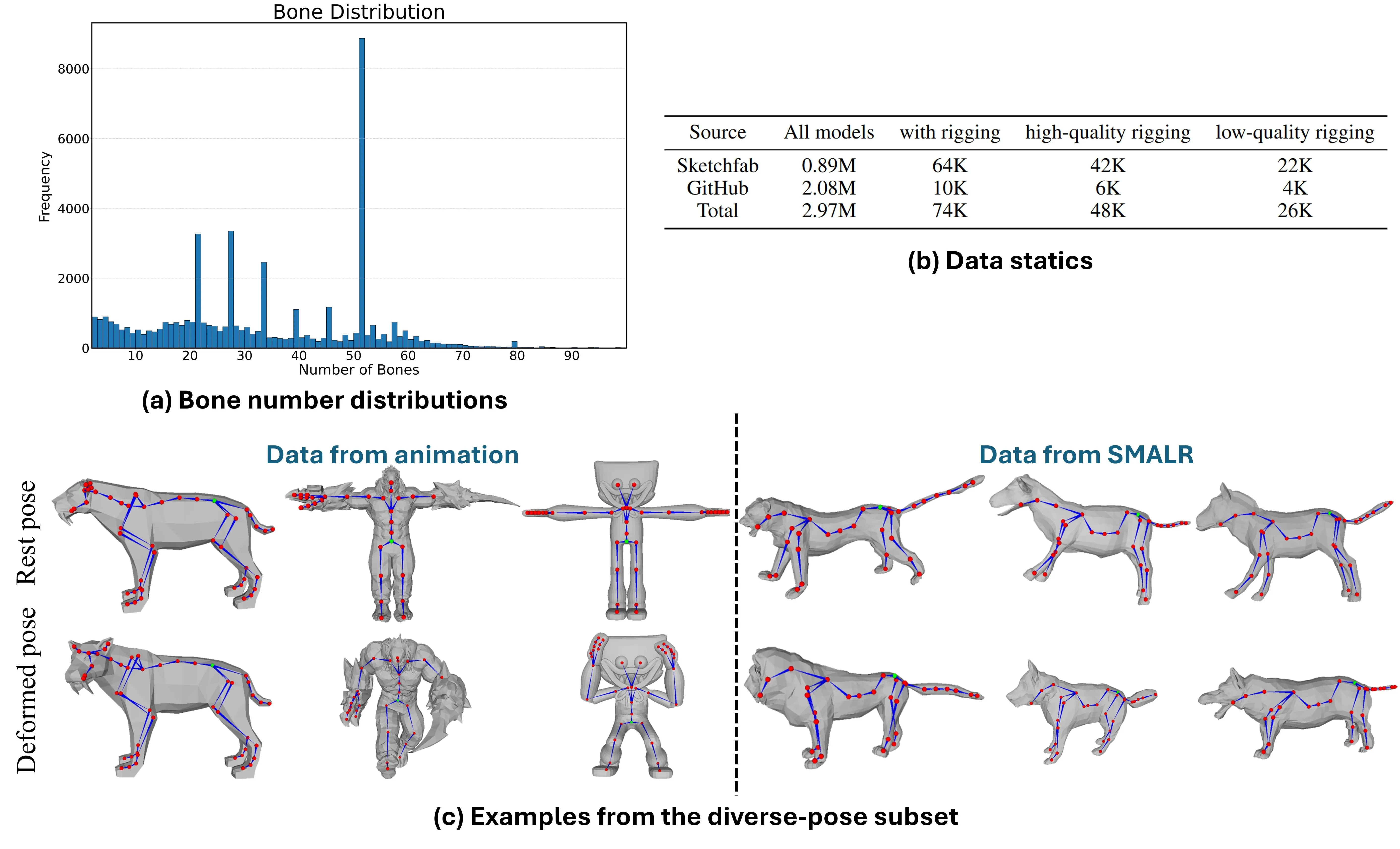
| Data | Articulation-XL2.0 dataset (59.4K rigged samples) |
| Code & Demos | GitHub repo with demo scripts and checkpoints |
| Links | Project page: https://chaoyuesong.github.io/Puppeteer/ — GitHub: https://github.com/Seed3D/Puppeteer |
If you want to see how video can guide motion and scenes more broadly, check out our short overview on text-to-video workflows.
Puppeteer: The Future of High-Quality Interactive Video Editing Key Features
-
One-click rigging. It predicts a bones-and-joints skeleton that fits your 3D mesh.
-
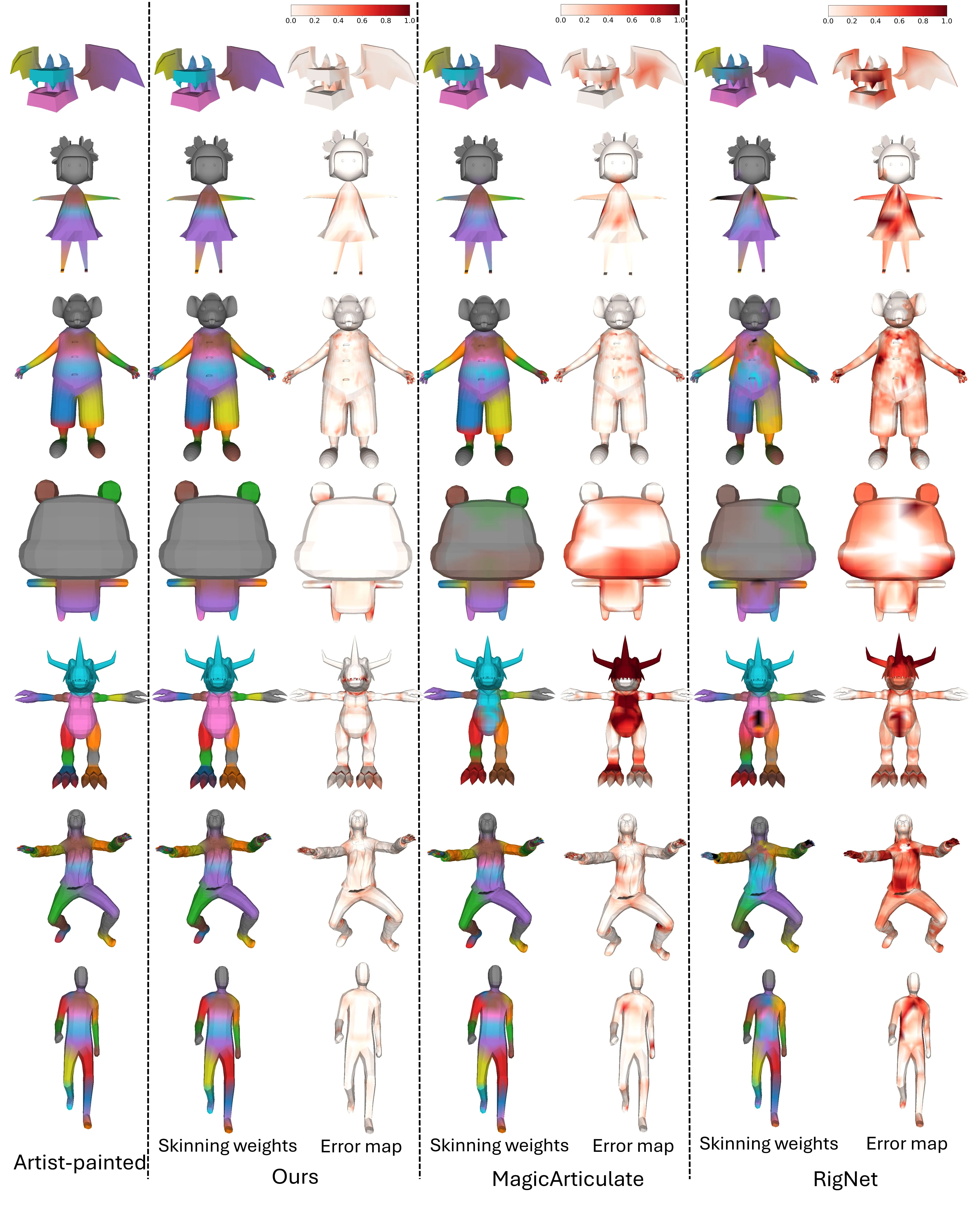
Smart bending. It assigns skinning weights so the surface bends in a smooth, natural way.
-
Video-guided motion. You can feed a video, and the rigged model follows the motion in 3D.
-
Stable results. The motion is steady over time and avoids jitter.
-
Works on many model types. From pro game assets to AI-made meshes.
-
Export to FBX. Move the rigged mesh into common 3D tools.

How Puppeteer Works (in Plain Words)
- Step 1: Find the bones. The system looks at your mesh and predicts a clean skeleton with joints placed in the right spots.
- Step 2: Decide how it bends. It sets skinning weights so each vertex knows which bone moves it, and by how much.
- Step 3: Animate with a video. It runs an optimization step that follows the video cues and makes a 3D animation that looks steady from different views.
The Technology Behind It (kept simple)
The skeleton is made by a transformer model that predicts joints in a smart order, so the full body plan makes sense. For bending, an attention model reads the mesh and the joint graph so nearby joints don’t fight each other.
For motion, the animation step uses a differentiable pipeline that improves the pose frame by frame. This keeps motion stable and helps avoid shape warping.
Installation & Setup
Follow these steps exactly to set up the environment and run the demos.
Environment requirements:
- Python 3.10 with PyTorch 2.1.1 and CUDA 11.8.
Commands to install:
git clone https://github.com/Seed3D/Puppeteer.git --recursive && cd Puppeteer
conda create -n puppeteer python==3.10.13 -y
conda activate puppeteer
pip install torch==2.1.1 torchvision==0.16.1 torchaudio==2.1.1 --index-url https://download.pytorch.org/whl/cu118
pip install -r requirements.txt
pip install flash-attn==2.6.3 --no-build-isolation
pip install torch-scatter -f https://data.pyg.org/whl/torch-2.1.1+cu118.html
pip install --no-index --no-cache-dir pytorch3d -f https://dl.fbaipublicfiles.com/pytorch3d/packaging/wheels/py310_cu118_pyt211/download.html
Before running any demo:
- Visit each folder (skeleton, skinning, animation) in the repo and download the required model checkpoints.
- Sample meshes and configs are in the examples folder.
Rigging demo (predict skeleton and skinning):
bash demo_rigging.sh
The final rig files will be saved in results/final_rigging.
Export a rigged mesh to FBX (install bpy==4.2.0 first):
python export.py --mesh examples/deer.obj --rig results/final_rigging/deer.txt --output deer.fbx
Video-guided 3D animation:
bash demo_animation.sh
The rendered multi-view animation will be saved in results/animation.
For deeper looks at long, scene-wide motion control, you may like our note on long context video models.
Puppeteer: The Future of High-Quality Interactive Video Editing Use Cases
-
Game and character setup. Auto-rig characters and creatures to speed up production.
-
AR/VR and interactive apps. Add moving 3D assets that respond well in real-time scenes.
-
Film previz and motion mockups. Turn quick meshes into animated shots for planning.
-
Product spin and hero shots. Move robot arms, toys, or gadgets based on a short video.
-
Education and research. Teach rigging concepts with quick, repeatable results.
-
Indie creators. Skip manual rigging hours and focus on the story and look.
To see related work from the same research family, read our short explainer on Goku video generation.
Performance & Showcases
Showcase 1 — Full pipeline preview This clip shows the full pipeline in action. Puppeteer.
Showcase 2 — Side-by-side animation quality We compare our animation results with L4GM and MotionDreamer. even with well-aligned reference views, L4GM consistently produces geometric distortions.
Showcase 3 — More motion comparisons We compare our animation results with L4GM and MotionDreamer. even with well-aligned reference views, L4GM consistently produces geometric distortions.
Showcase 4 — Stability under different views We compare our animation results with L4GM and MotionDreamer. even with well-aligned reference views, L4GM consistently produces geometric distortions.
Showcase 5 — Shape preservation under motion We compare our animation results with L4GM and MotionDreamer. even with well-aligned reference views, L4GM consistently produces geometric distortions.
Showcase 6 — Consistency across frames We compare our animation results with L4GM and MotionDreamer. even with well-aligned reference views, L4GM consistently produces geometric distortions.
Tips for Best Results
- Start with clean meshes. Fewer holes and better normals help the rig fit well.
- Use simple test videos first. Clear motion cues make the animation step easier to check.
- Export to FBX and inspect. Open the FBX in your 3D tool to fine-tune poses if needed.
FAQ
Do I need 3D rigging skills to use Puppeteer?
No. The project is made to handle the heavy steps for you. You still need to follow the setup and run the scripts as shown.
What file types can I use?
The examples show OBJ meshes and FBX export. You can adapt other mesh types if your tools can convert them to OBJ or FBX.
How long does an animation take to render?
Time depends on mesh size, GPU, and video length. Short clips with mid-size meshes finish much faster than very detailed scenes.
Can I use the results in other 3D tools?
Yes. You can export to FBX and open it in common DCC apps. That makes it easy to keep working on lighting, materials, and final edits.
Where can I learn more about video-driven creation?
If you want a broader intro, see this simple guide on text to video methods. It pairs well with Puppeteer’s video-guided motion idea.
Wrap-up
Puppeteer turns still 3D meshes into rigged, moving assets with a short, clear workflow. It predicts bones, sets bending rules, and follows a video to create steady motion.
With open code, demos, and a large dataset, it is a strong choice for teams and solo creators who want fast rigging and clean animation.
Image source: Puppeteer: The Future of High-Quality Interactive Video Editing