DreamO: The Ultimate Unified Framework for Seamless Image Customization
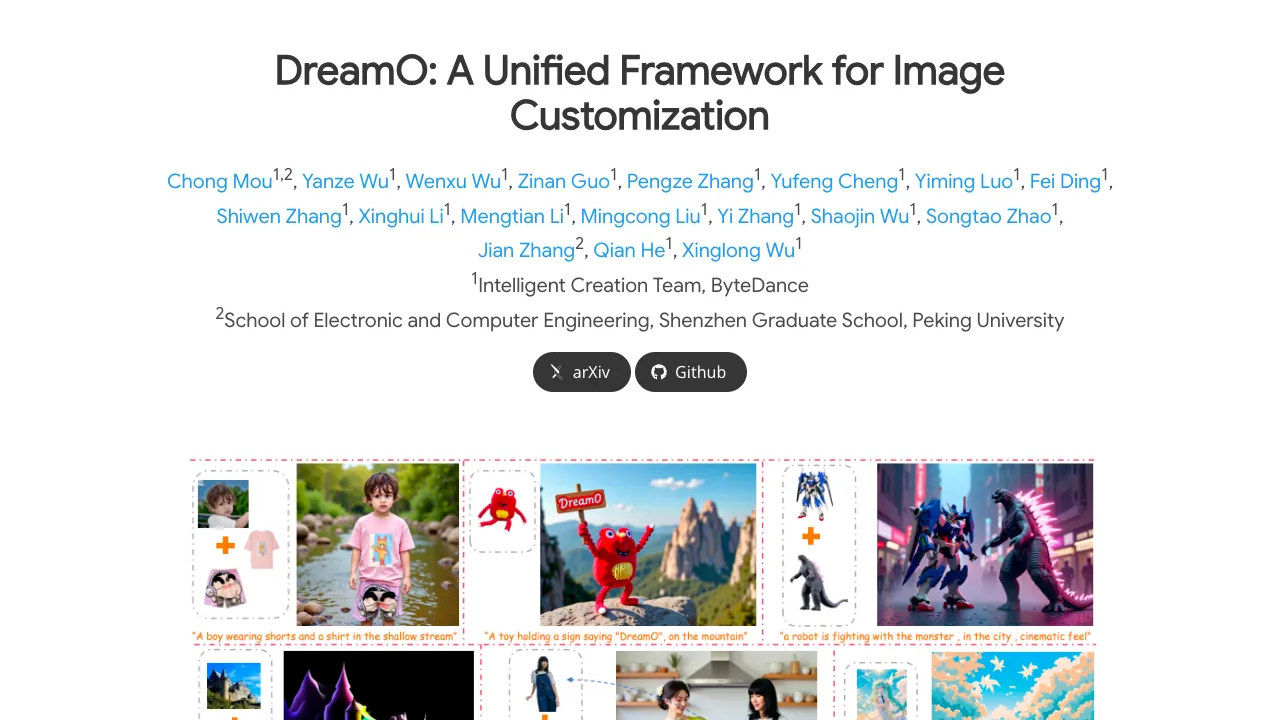
What is DreamO: The Ultimate Unified Framework for Image Customization
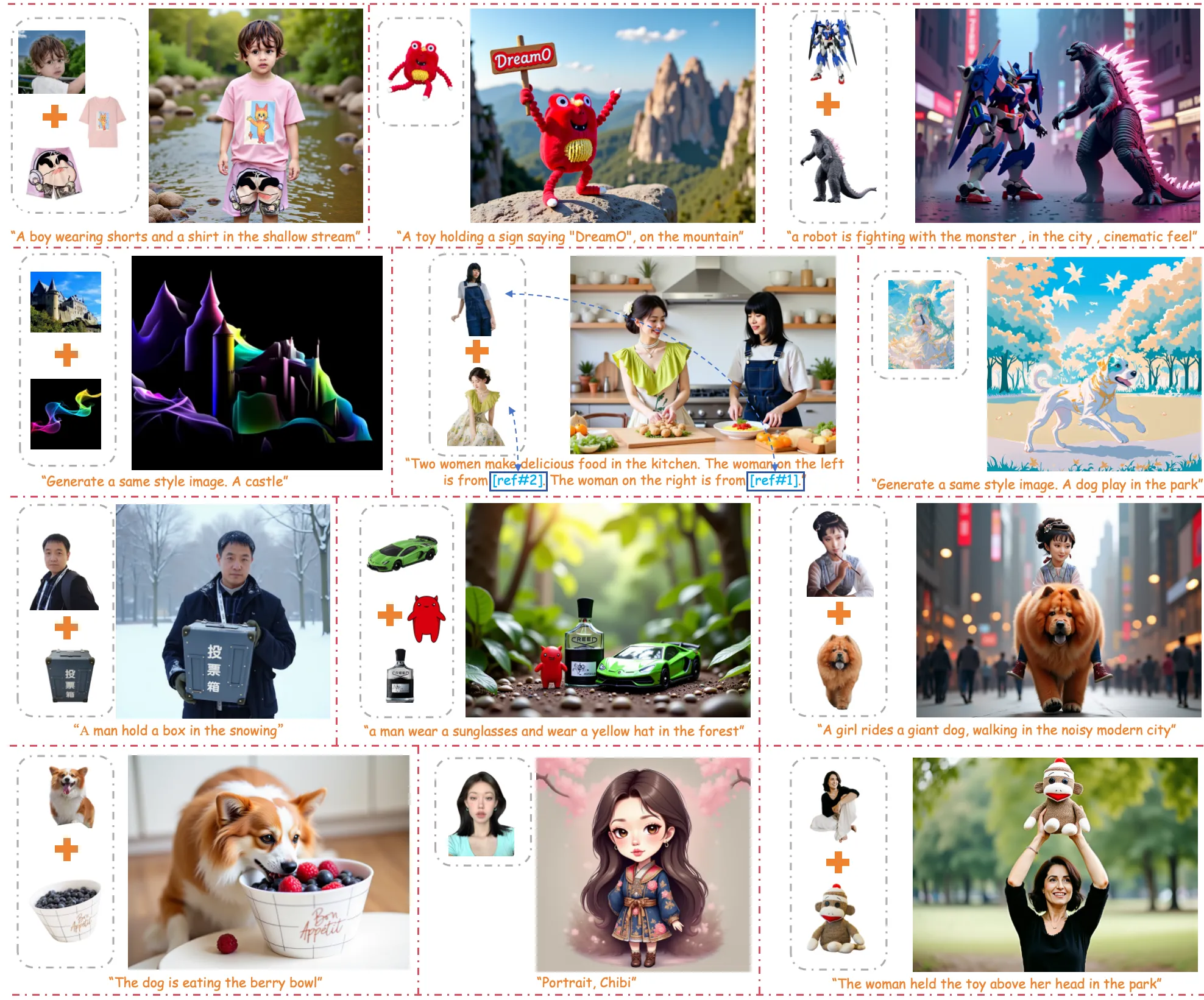
DreamO is a single system that lets you edit and create images with many types of controls at once. You can guide it with a face, a full character, clothing items, or a style, and mix these inputs to get the result you want.
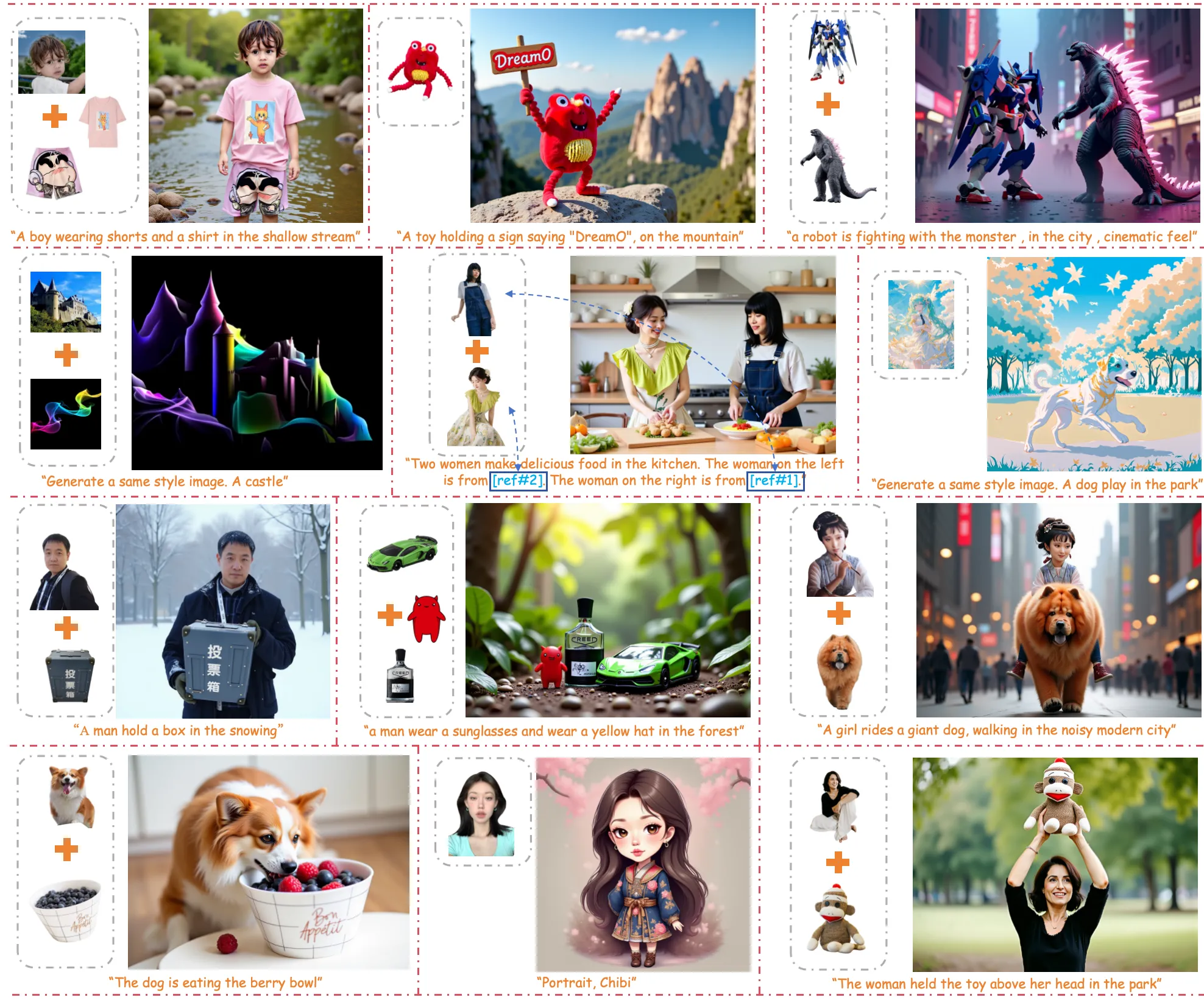
It runs on your own computer, supports consumer GPUs, and also has a simple app you can start with one command. The team built special tricks to keep faces, outfits, and styles consistent in the final image.
Tip: For background on the team and related work, see our short profile of Bytedance.
DreamO: The Ultimate Unified Framework for Image Customization Overview
Here’s a quick look at what DreamO offers and how you can use it.
| Item | Details |
|---|---|
| Type | Open-source image customization framework (Diffusion + Transformer) |
| Creator | ByteDance (official implementation) |
| Latest version | v1.1 (improved quality, fewer body errors, better look) |
| Main purpose | Create and edit images with identity, subject, clothing, and style inputs |
| Key features | Multi-condition control, feature routing, placeholder tokens, 3-stage training, Turbo LoRA option |
| Supported tasks | IP (character/object), ID (face), Try-On (tops/bottoms/glasses/hats), Style, Multi Condition |
| Demo options | Local Gradio app, ComfyUI node, HuggingFace demo |
| Devices | NVIDIA GPUs (8GB, 16GB, 24GB with quantization and offload), Apple Silicon (M1–M4) via MPS, CPU support |
| Quantization | int8 (optimum-quanto) and Nunchaku |
| Setup time | Minutes (conda + pip) |
| Quick start | python app.py |
| Project page | mc-e.github.io/project/DreamO |
| Repo | github.com/bytedance/DreamO |
Read more hands-on notes here: Dreamo quick notes.
DreamO: The Ultimate Unified Framework for Image Customization Key Features
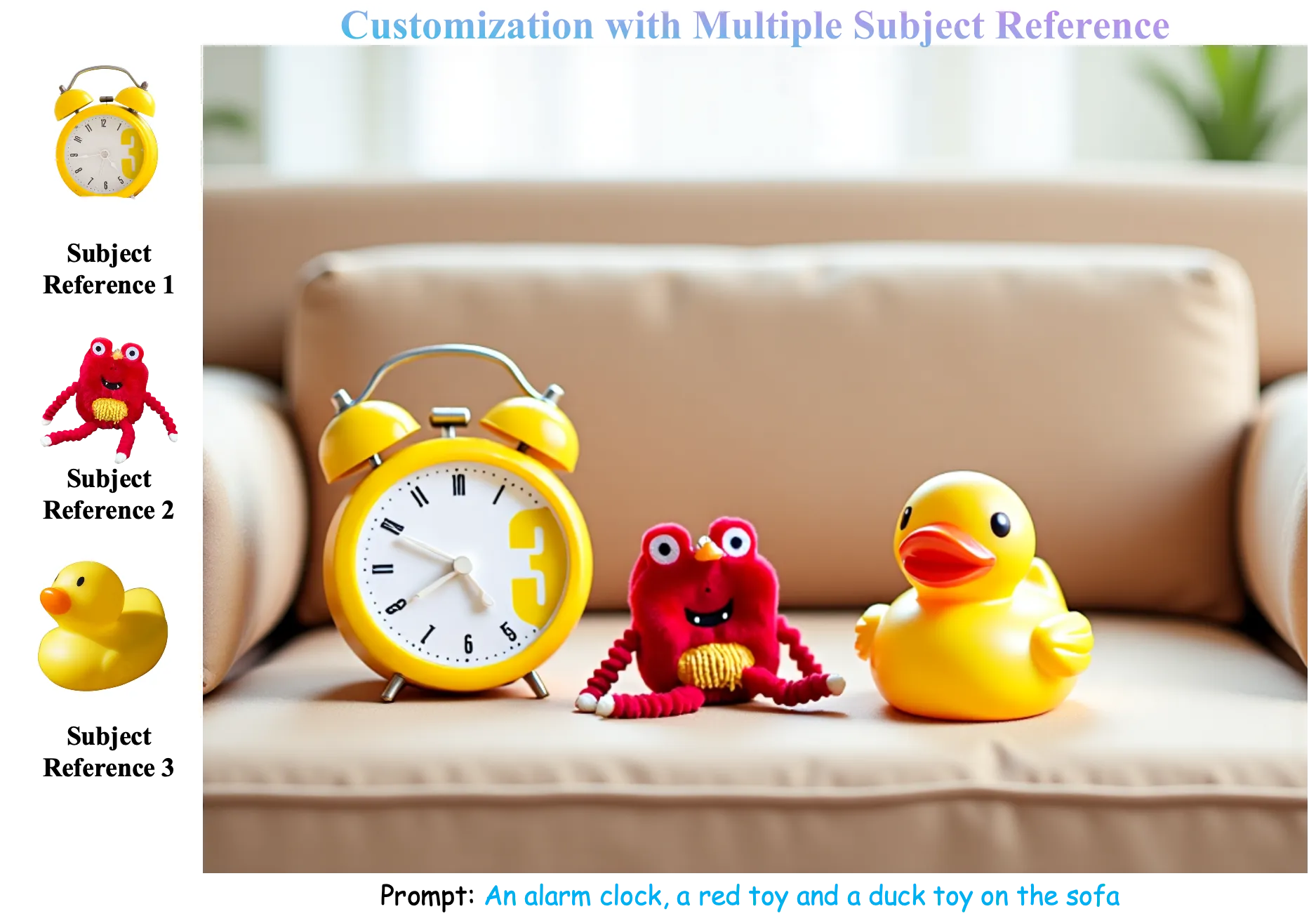
- One tool for many inputs. Guide the model with a face, a full character, clothing pieces, or a reference style.
- Mix inputs. Combine ID, IP, and Try-On to get more control in one run.
- Strong face and character match. It keeps key traits of a person or character.
- Try-On with more than one garment. Add tops, bottoms, glasses, and hats together.
- Placeholder positions. You can tie a condition to a spot in the image prompt so the right thing shows up in the right place.
- Feature routing. The model “picks” the right details from each reference so they do not clash.
- Three-stage training. Starts simple, scales up, then fixes quality, which helps keep results balanced.
- Turbo LoRA option. By default it uses a fast LoRA to cut steps from 25+ to 12 for quicker results.
Note: For a simple overview of our AI tools hub, check Omnihuman 1.Com.
DreamO: The Ultimate Unified Framework for Image Customization Use Cases
IP (Character/Object)
Give a full-body character, object, or animal as a guide. The system encodes features to keep identity details clear.
ID (Face)
Focus only on the face. This task targets facial traits without clothing. If the face looks too glossy, lower the guidance scale.
Try-On (Clothes and Accessories)
Feed tops, bottoms, glasses, and hats to test outfits. Even with no multi-garment pairs in training, it still handles many pieces together well.
Style
Give a style image to affect the look. In the current release, style is less stable and cannot be mixed with other conditions yet.
Multi Condition
Mix ID, IP, and Try-On in one shot. The feature routing design helps reduce conflicts between inputs.
Performance & Showcases
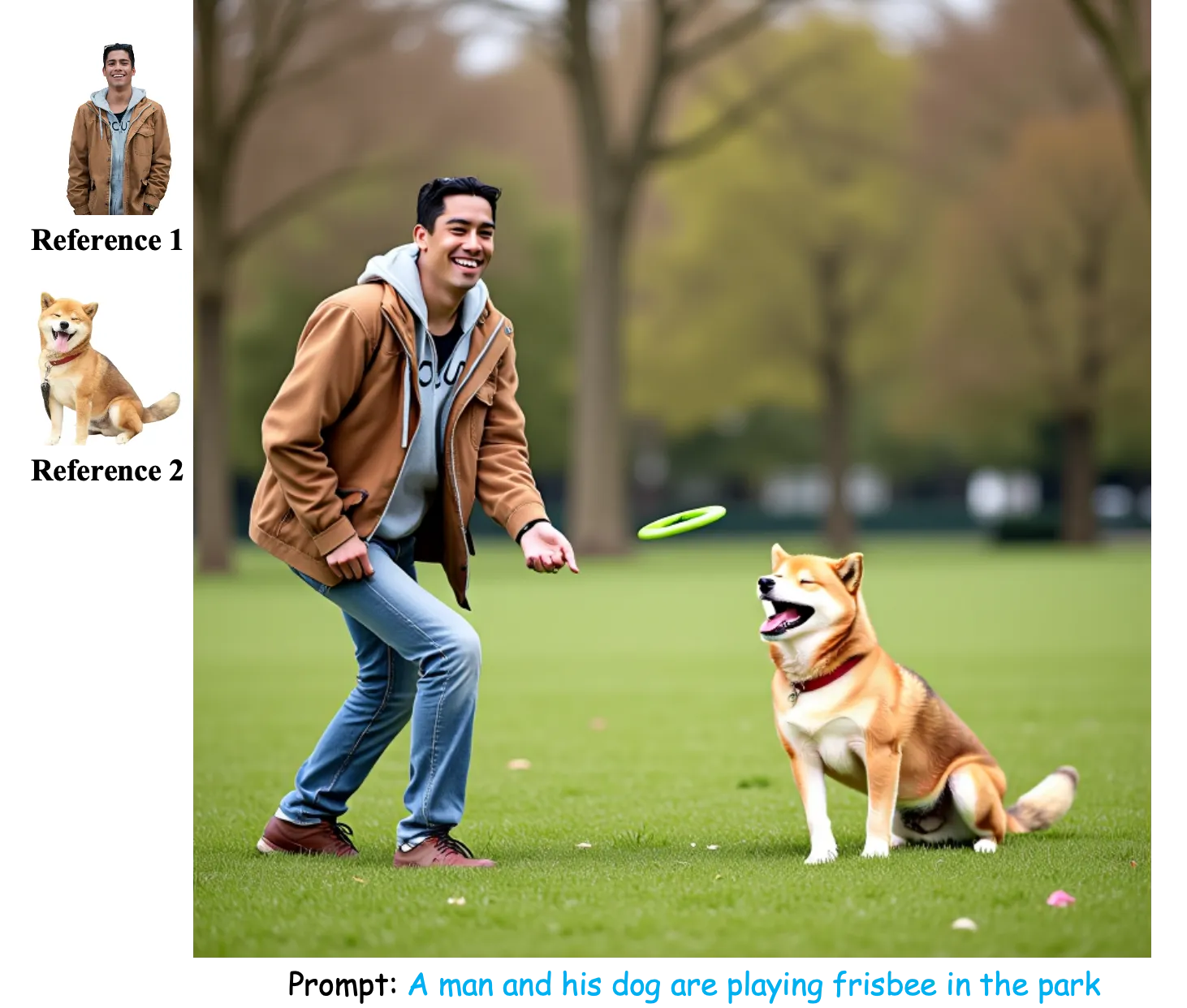
Showcase 1 — Recently, extensive research on image customization (e.g., identity, subject, style, background, etc.) demonstrates strong customization capabilities. This clip shows how one model can support many types of input in a single workflow.
How DreamO Works
DreamO takes in your prompt plus one or more reference images. It then runs a diffusion transformer that reads all inputs in a uniform way.
A “feature routing” rule guides which parts of the reference are used for the face, outfit, or style. A “placeholder” trick lets you tie a condition to a specific spot in the prompt so the right thing appears in the right place.
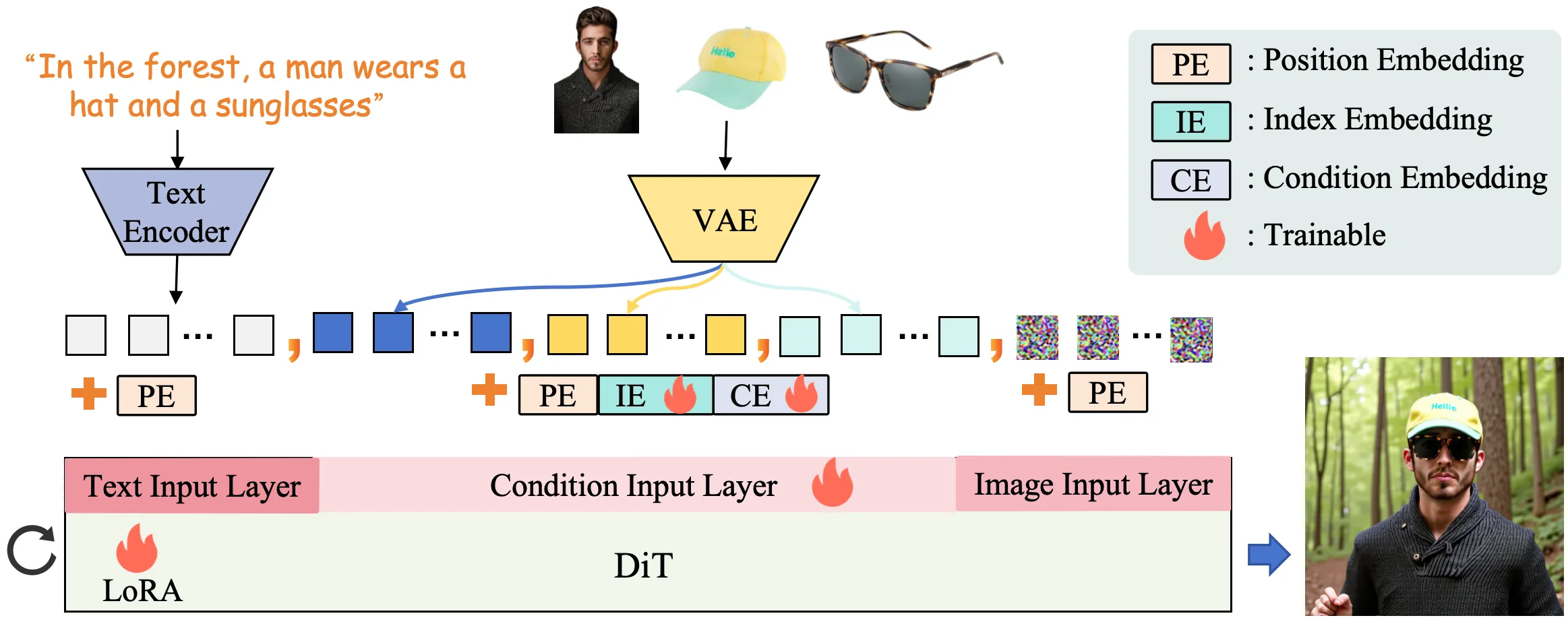
The team trained the model in three stages. First on simple tasks to lock core consistency, then on a large mixed set to grow skills, and finally a quality pass to fix bias from lower-quality data.
Installation & Setup
Note for v1.1: In order to use Nunchaku for model quantization, we have updated the diffusers version to 0.33.1. If you have the older version 0.31.0 installed, please update diffusers; otherwise, the code will throw errors.
Copy these steps exactly.
# clone DreamO repo
git clone https://github.com/bytedance/DreamO.git
cd DreamO
# create conda env
conda create --name dreamo python=3.10
# activate env
conda activate dreamo
# install dependent packages
pip install -r requirements.txt
(optional) Nunchaku: If you want to use Nunchaku for model quantization, please refer to the original repo for installation guide.
Quick Inference — Local Gradio Demo
Start the app:
python app.py
Available options:
options:
 --version {v1.1,v1} default will use the latest v1.1 model, you can also switch back to v1
 --offload Enable 'quant=nunchaku' and 'offload' to reduce the original 24GB VRAM to 6.5GB.
 --no_turbo Use turbo to reduce the original 25 steps to 12 steps.
 --quant {none,int8,nunchaku}
 Quantize to use: none(bf16), int8, nunchaku
 --device DEVICE Device to use: auto, cuda, mps, or cpu
We observe strong compatibility between DreamO and the accelerated FLUX LoRA variant (FLUX-turbo), and thus enable Turbo LoRA by default, reducing inference to 12 steps (vs. 25+ by default). Turbo can be disabled via --no_turbo, though our evaluation shows mixed results; we therefore recommend keeping Turbo enabled.
tips: If you observe limb distortion or poor text generation, try increasing the guidance scale; if the image appears overly glossy or over-saturated, consider lowering the guidance scale.
For consumer-grade GPUs
Currently, the code supports two quantization schemes: int8 from optimum-quanto and Nunchaku. You can choose either one based on your needs and the actual results.
For 8GB GPUs:
python app.py --nunchaku --offload
For 24GB GPUs:
python app.py --quant int8
python app.py --quant nunchaku
For 16GB GPUs:
python app.py --int8 --offload
Note: Offload cuts memory but also slows down speed.
For macOS Apple Silicon (M1/M2/M3/M4)
DreamO supports Apple Silicon via MPS. The app will pick MPS by default when available.
Run the app:
python app.py
Pick a device:
python app.py --device mps
python app.py --device cpu
Combine MPS with quantization on low-memory devices:
python app.py --device mps --int8
Make sure your PyTorch build supports MPS (requirements include PyTorch 2.6.0+).
The Technology Behind DreamO
- Uniform input handling: The diffusion transformer lets the model read very different inputs in a single flow.
- Feature routing: It directs the right bits of info from each reference so they do not interfere with each other.
- Placeholder mapping: Each condition can be tied to a spot in the prompt, helping with layout.
- Training stages: Start simple for stability, scale up for skills, then adjust for quality.
What’s New in v1.1
- Better overall image quality.
- Fewer body composition mistakes.
- Nicer look and color control.
- Support for consumer GPUs (16GB and 24GB) with quantization and offload choices.
- Native ComfyUI node and macOS MPS support.
- Nunchaku quantization support and diffusers 0.33.1 note.
If you want a tiny, fast summary of the project and updates, check our short guide: Dreamo quick notes.
Getting Results in ComfyUI and Online Demo
- ComfyUI: Use the native node “ComfyUI-DreamO” to build a node graph with your inputs.
- Online: Try the HuggingFace demo in your browser.
For more background on our AI coverage and related tools, visit our main hub.
FAQ
Can I mix face identity with clothing items?
Yes. Use ID for face and Try-On for tops, bottoms, glasses, and hats in the same run. The feature routing design helps keep each part clean.
What if the face looks too glossy or colors look too strong?
Lower the guidance scale. If limbs look warped or text is weak, raise the guidance scale.
Does it run on an 8GB GPU?
Yes, with Nunchaku quantization and offload. Use the exact command shown above to fit memory.
Can I use styles with other conditions right now?
Not yet. Style is a solo input in the current version, and mixing will come later.
Is there a quick way to try it without coding?
Yes. Run the local Gradio app with one command or use the HuggingFace demo. ComfyUI is also ready if you prefer node graphs.
Read More: Bytedance
Image source: DreamO: The Ultimate Unified Framework for Image Customization