Animate Your World: Alive and the Future of Lifelike Audio-Video Generation
What is Animate Your World: Alive and the Future of Natural Audio-Video Generation
Alive is a single model that makes videos with sound from text or from a picture. It can also turn a face photo into a talking, moving clip while keeping the same person. The goal is to keep the picture, motion, and sound in step so it feels natural.
Alive is built on top of proven video tech and adds a strong audio part. It brings both parts together so the mouth, actions, and sounds line up. It aims for high quality while keeping speed and control.
Animate Your World: Alive and the Future of Natural Audio-Video Generation Overview
Here’s a quick snapshot of the project.
| Item | Details |
|---|---|
| Project Name | Alive: Animate Your World with Audio-Video Generation |
| Type | Unified audio-video generation and animation model |
| Purpose | Generate videos with sound from text or from a reference image; create talking portraits; support long clips with flexible sizes |
| Main Features | Text-to-Video+Audio (T2VA), Reference/Image-to-Video+Audio (I2VA), Text-to-Video (T2V), Text-to-Audio (T2A), strong sync between audio and video |
| Data | Million-scale audio-video data with dual quality checks and joint keyword labels |
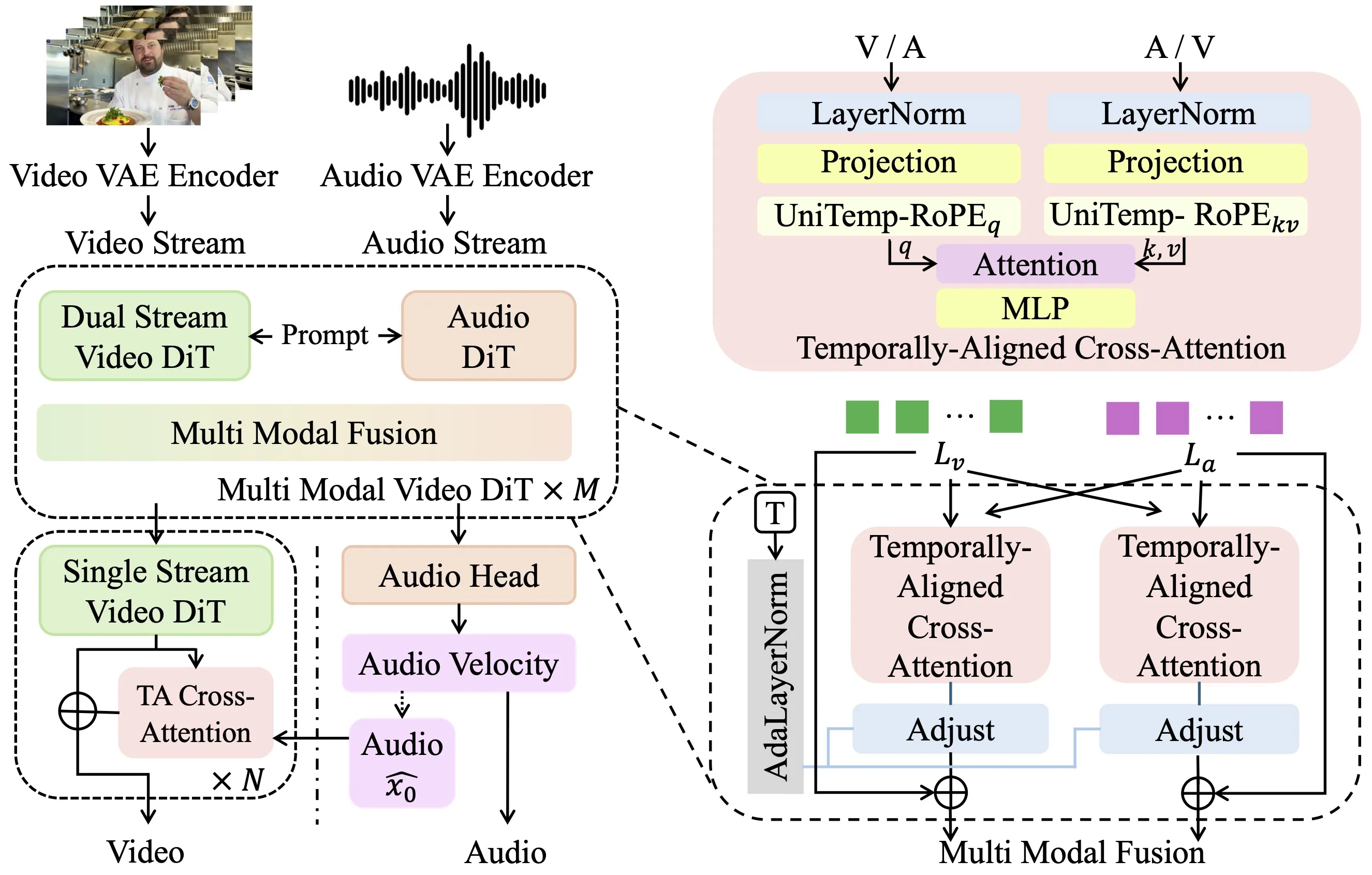
| Sync Tech | Time-aligned cross attention (TA-CrossAttn) and unified time mapping (UniTemp-RoPE) for tight timing |
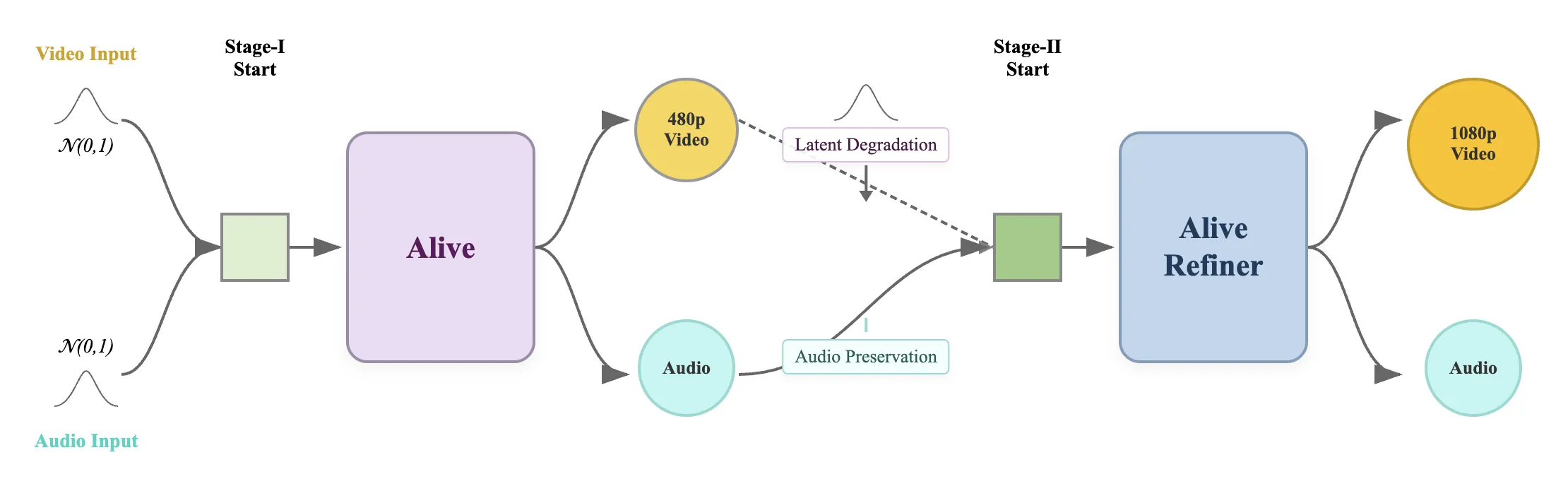
| Output Quality | 480p base with a refiner to 1080p, better clarity and fewer artifacts |
| Target Users | Creators, educators, product teams, researchers |
| Benchmark | Alive-Bench 1.0 with human checks across motion, look, prompt following, audio, and sync |
| Availability | Online demo and project page |
| Project Page | https://foundationvision.github.io/Alive/ |
If you’re new to this field and want a simple start, check out our easy primer on how text turns into moving clips: text-to-video basics.
Animate Your World: Alive and the Future of Natural Audio-Video Generation Key Features
- One model for many tasks. From text-only prompts to animating a face photo, it works in one place.
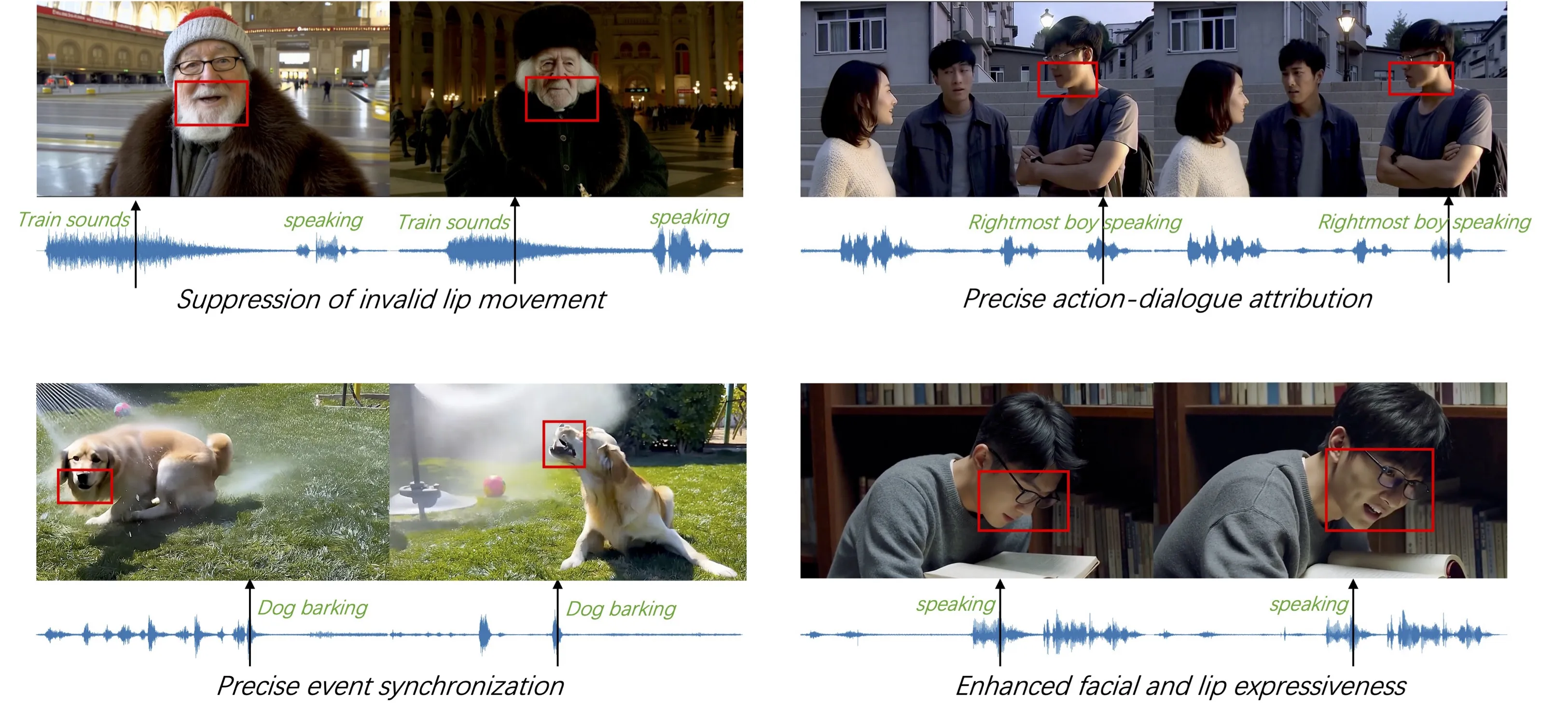
- Strong sync between mouth, body motion, and sound. Actions match beats and words.
- Flexible sizes and lengths. Make short or long clips, square or wide, and push to 1080p with the refiner.
- Smart data pipeline. Paired checks for both audio and video, with labels that link sounds to what’s on screen.
- Role-playing animation. Better identity control over time using multi-reference input and careful conditioning.
- Built-in benchmark. Alive-Bench 1.0 tests motion, look, prompt following, audio quality, and audio‑video timing.
Animate Your World: Alive and the Future of Natural Audio-Video Generation Use Cases
- Talking portraits for creators and brands. Turn a still headshot into a speaking clip for intros or ads.
- Storytelling from a script. Feed a prompt and get a video with sound effects or speech.
- Training and lessons. Make clear explainer clips with voices synced to the on-screen action.
- Product how-tos and support. Show features while a voice guides the user.
- Dubbing and audio swap. Keep the same scene but change the voice and timing to match a new language.
Curious how big labs frame new video systems? See our short note on ByteDance’s latest directions here: Open O3 Video approach.
Performance & Showcases
Alive-Bench 1.0 is a full check-up for audio and video in one go. It looks at movement, picture look, prompt following, sound quality, and timing across many fine-grained points. In human studies, Alive scores at or near the top, with a clear edge in sound prompt following and sync.
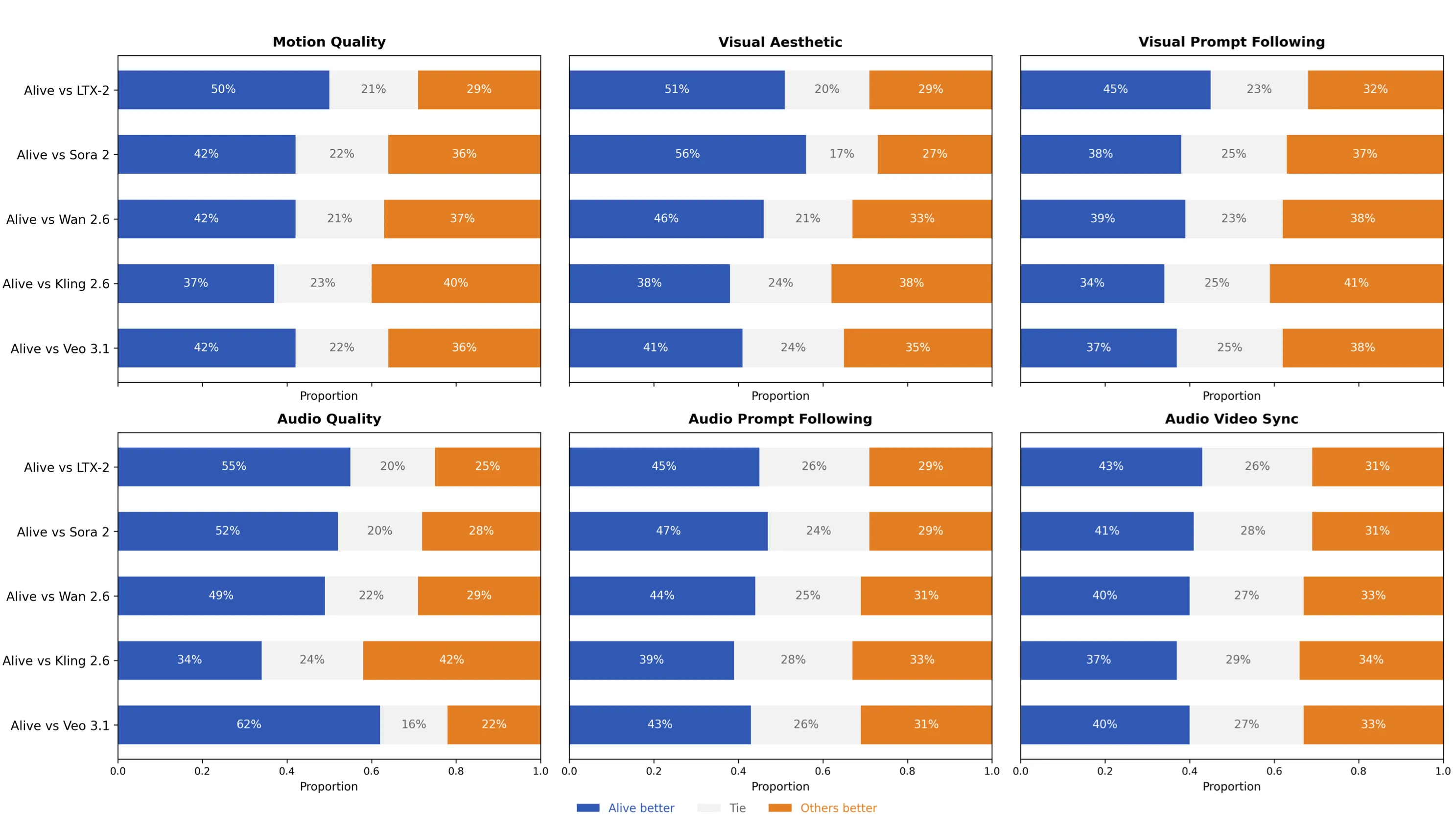
Showcase 1 — Alive-Bench 1.0
Showcase 2 — Alive-Bench 1.0
Showcase 3 — Alive-Bench 1.0
Showcase 4 — Alive-Bench 1.0
Showcase 5 — Alive-Bench 1.0
Showcase 6 — Alive-Bench 1.0
We also reviewed another strong video model from industry for context. For a quick read, see our note on ByteDance’s system: Goku Video Generation.
How It Works: The Technology Behind Alive
Alive brings two transformers together: one for video and one for audio. It sets both to the same time map so they “agree” on when things happen. This shared clock keeps lips, steps, beats, and sounds aligned.
Crisp audio and 1080p video
Alive first makes a 480p clip with audio, then passes it to a refiner. The refiner cleans the picture and lifts it to 1080p while keeping timing. Audio is fed through a frozen audio module to protect clarity and sync.
Smart data pipeline
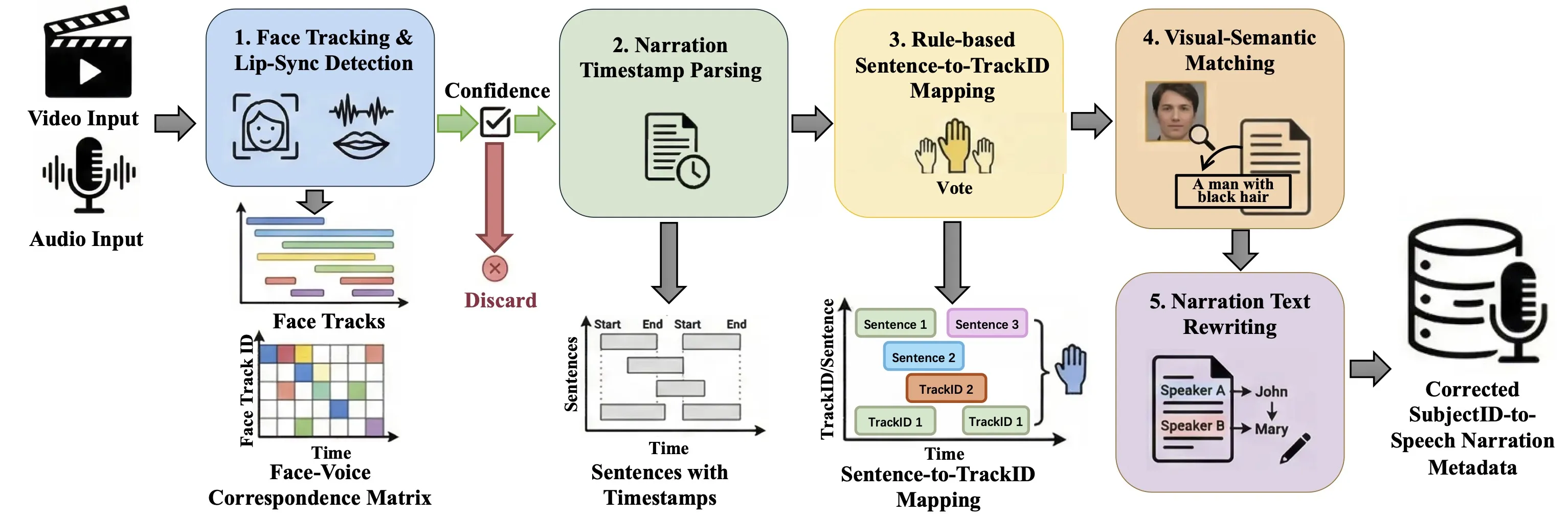
Good training data is the base for quality. Alive filters both audio and video, links objects with related sounds by keywords, and fixes who-is-speaking across many shots. This helps keep identity steady and speech matches the right person.
Training recipe that protects audio quality
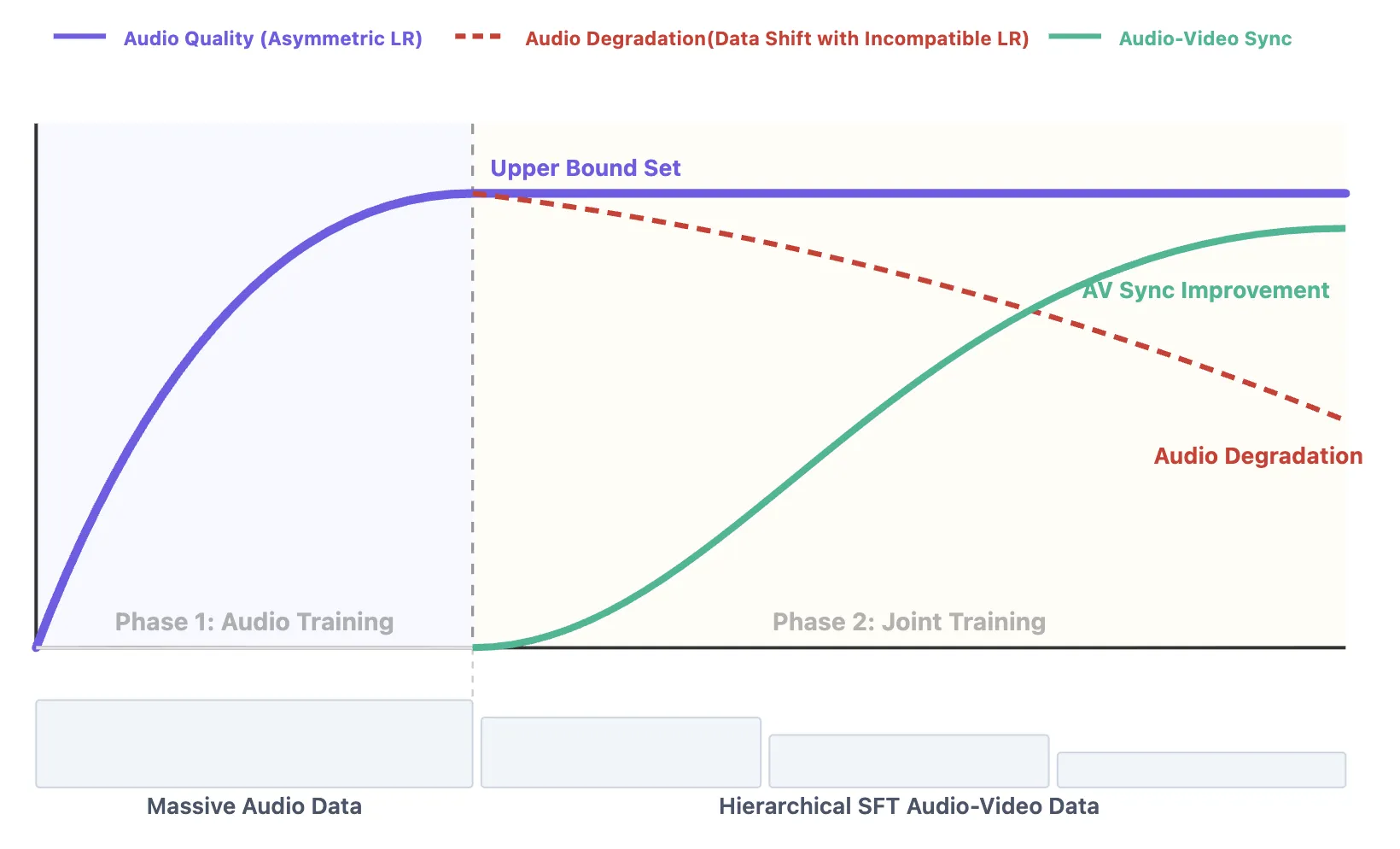
Audio pre-training sets the ceiling for sound quality. Joint training mainly helps sync, but it cannot fix weak audio pre-training. To keep sound strong, Alive uses different learning rates so the audio part does not forget what it learned.
Fast inference and prompt control
During generation, the model listens to two things: your text prompt and a cross signal that nudges sync. Alive treats these as separate knobs, so you can guide the look and the timing signal with control. This makes prompts more stable and helps lock in sync.
Getting Started: Try Alive Today
- Visit the project page: https://foundationvision.github.io/Alive/
- Open the online demo from the project page and test a short prompt.
- Use a clear prompt, pick your size and length, and generate a clip with sound.
- Review sync and clarity; then export your result.
For more starter tips on prompt writing and formats, our hands-on overview may help: quick text-to-video tips.
Step-by-Step: From Idea to Clip
- Write a short, clear prompt. Say what should be on screen, what the person says, and any sound cues.
- Set the aspect ratio you need. For example, 9:16 for shorts or 16:9 for widescreen.
- Pick clip length. Start small (5–10 seconds) to test motion and timing.
- If you have a face photo, use it as a reference for a talking portrait.
- Generate at base size, then upscale to 1080p with the refiner for a cleaner result.
Tips for Best Results
- Keep sentences short and use plain words in your prompt.
- If you need speech, include the exact line to say.
- For sound effects, name the cue and timing, like “door closes at 2s.”
- Share a clear face image for stable identity if you animate a portrait.
- If timing feels off, adjust the prompt to point out beats or cuts.
FAQ
What can Alive make?
Alive can make videos with sound from text, or animate a face photo into a talking clip. It can also make just video or just audio if you prefer.
How long can the video be?
The system supports flexible length. Start short for speed, then try longer runs as needed.
Does it support different sizes?
Yes. You can pick square, tall, or wide frames. A refiner helps reach 1080p.
How does it keep lips and sound in step?
Both audio and video parts share the same time plan. A cross signal helps line up actions and sound.
Can I keep the same character across shots?
Yes. Use reference images. The model treats them as steady identity anchors, which helps keep the face and style consistent.
Is there a public demo?
Yes. Use the online demo linked on the project page to try prompts and references.
What makes its data pipeline special?
It checks both audio and video quality and links objects to related sounds with keywords. It also fixes who is speaking across many shots to reduce mix-ups.
Can joint training fix weak audio pre-training?
No. Audio pre-training sets the quality limit. Joint training mainly boosts sync, not core audio skill.
Can I control prompt strength vs. sync strength?
Yes. Text prompt guidance and the mutual cross signal are separate, so you can tune them for your needs.
Where can I learn about other video models?
We share quick reads on modern systems, like this short note on ByteDance’s approach: Open O3 Video and this overview of a related model: Goku Video Generation.
Image source: Animate Your World: Alive and the Future of realistic Audio-Video Generation