UMO: Unified Multi-modal Optimization for Urban Mobility
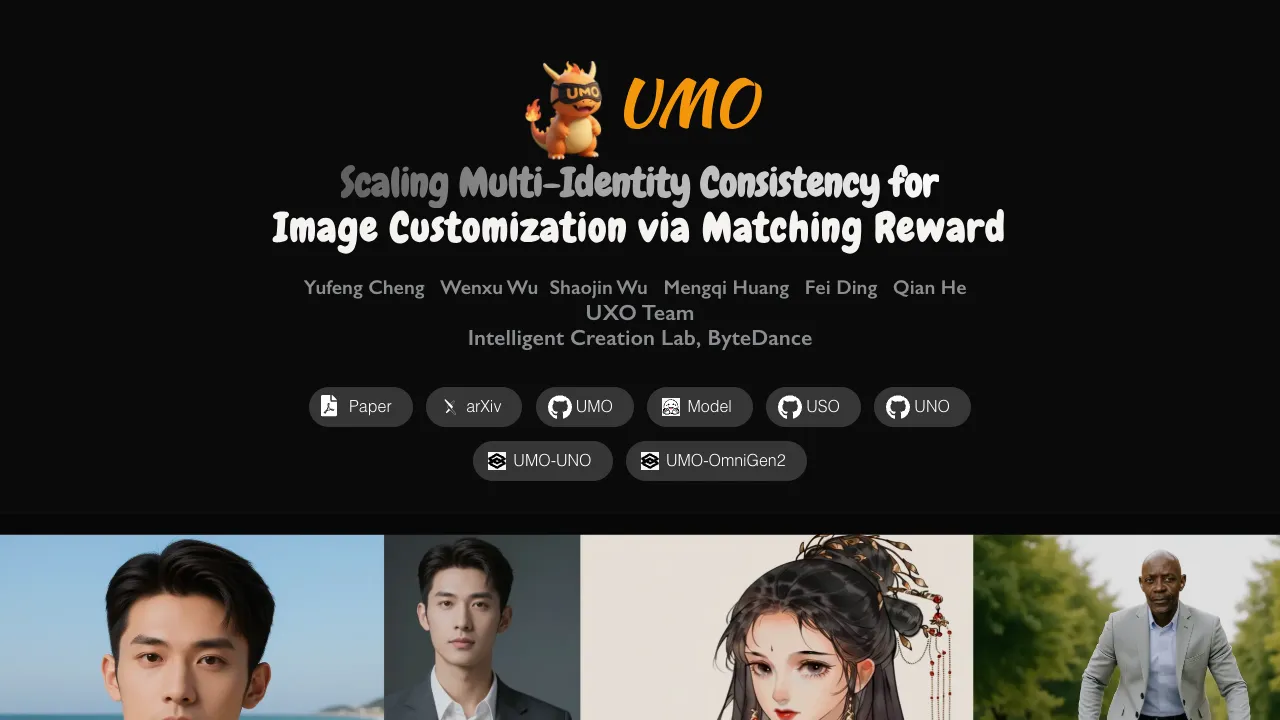
What is UMO: Unified Multi-identity Optimization for Image Customization
UMO is a new way to keep people and characters looking the same across many generated images. It comes from the UXO team at ByteDance and works with popular image tools like UNO and OmniGen2. It aims to fix a common problem: when you use many reference photos, the final image can mix up faces or change them.

UMO treats this as a matching problem and keeps identities stable even with many references. It is open-source with code, models, and demos, so anyone can try it out. To learn about the people behind it, see this short team overview: ByteDance team profile.
UMO: Unified Multi-identity Optimization for Image Customization Overview
Here is a quick look at the project.
| Item | Details |
|---|---|
| Type | Open-source framework for image customization |
| Creator | UXO Team, Intelligent Creation Lab, ByteDance |
| Purpose | Keep identity consistent across one or many subjects with multiple reference images |
| Works With | UNO and OmniGen2 backbones (via LoRA) |
| What You Get | Inference code, evaluation code, model weights, training plan (project says full open-source) |
| Demos | Gradio apps for UMO-UNO and UMO-OmniGen2 |
| Workflows | ComfyUI workflows for both UMO-UNO and UMO-OmniGen2 |
| Datasets | Scalable dataset with multiple references (real and synthetic) used for training |
| Extra | New metric to check identity confusion |
| Latest News | 2025-09-15: ComfyUI workflows released; 2025-09-09: Demos and paper released; 2025-09-08: Models, project page, and inference/eval code released |
| Project Page | https://bytedance.github.io/UMO/ |
| GitHub | https://github.com/bytedance/UMO |

If you like following new AI build notes and practical tips, you may enjoy the posts on our blog.
UMO: Unified Multi-identity Optimization for Image Customization Key Features
-
Multi-identity support. UMO combines many references and keeps each identity clear.
-
“Multi-to-multi” matching. It treats identity control as a global matching problem, not just pairwise.
-
Identity confusion control. It adds a new score to catch and reduce face mix-ups.
-
Works across methods. It improves identity stability on existing diffusion-based customization tools.
-
Open demos and workflows. Gradio apps and ComfyUI workflows are included for quick tests.
-
Scalable training data. It uses real and synthetic references to train at scale.
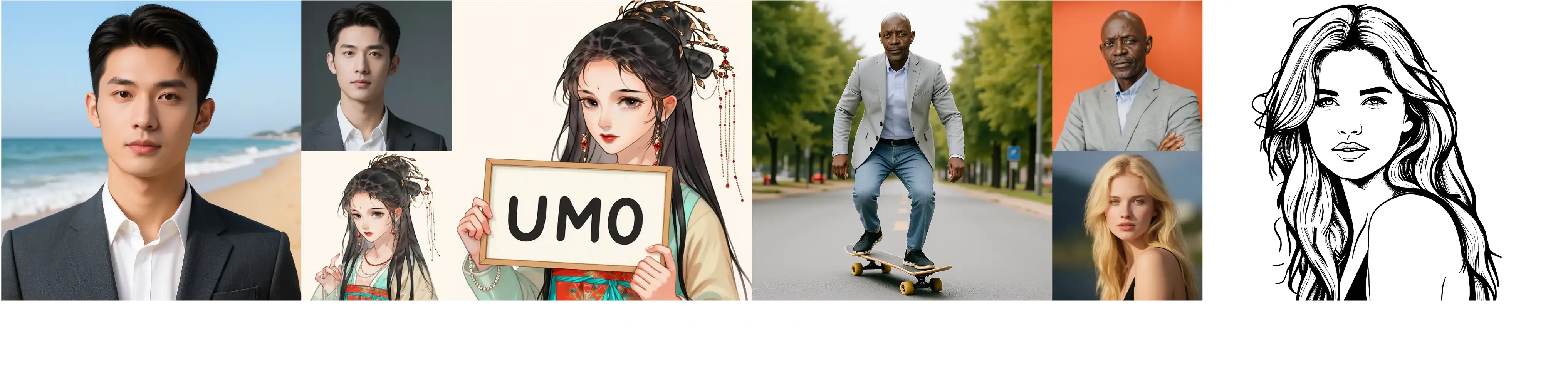
UMO: Unified Multi-identity Optimization for Image Customization Use Cases
-
Portrait sets: Keep the same person’s face across many styles or scenes.
-
Group images: Combine several people with correct faces in one image.
-
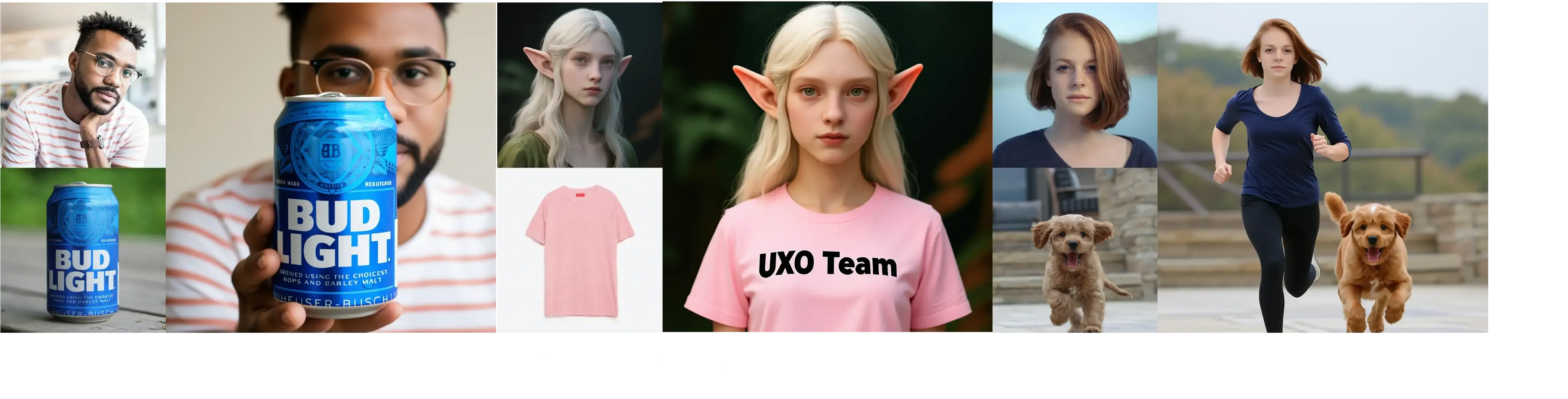
Product with models: Keep the same model identity while changing outfits and scenes.
-
Ads and brand content: Keep a mascot or spokesperson consistent across campaigns.
-
Avatars and creators: Keep a VTuber or character face stable across different prompts.
-
Photo storybooks: Keep family members or characters the same across many pages.
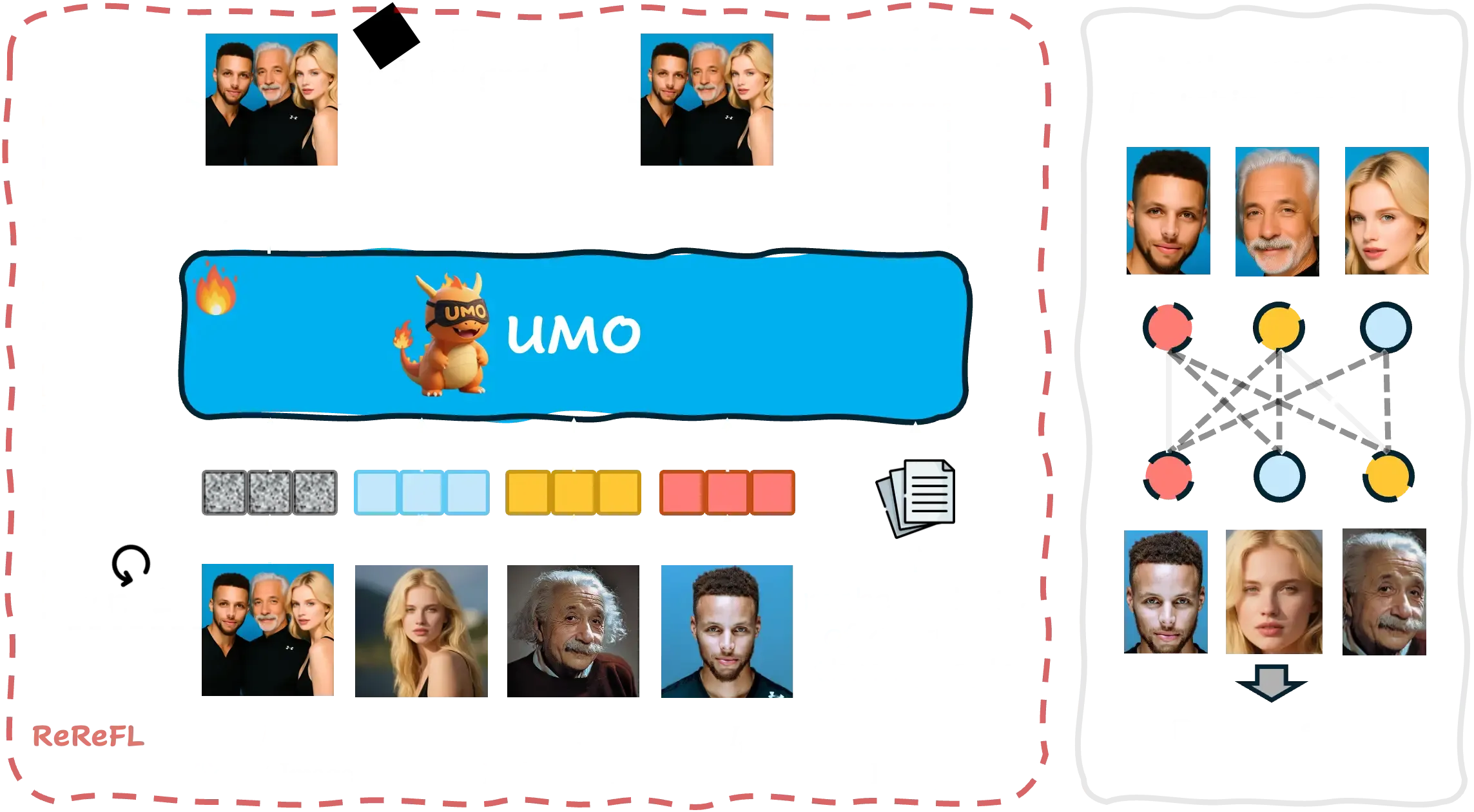
How It Works
UMO looks at all references and all outputs at once. It finds the best match between them as a full assignment problem. This helps the model keep each person’s face from being mixed up with others.
It then applies reinforcement learning on top of diffusion models. This teaches the model to prefer results that match the right identities. Over time, images look more stable and less confusing.
If you want to see how this can look in simple, concrete scenarios, browse this short example collection.
Installation & Setup (Getting Started)
Follow these steps exactly as shown below.
Step 1 — Clone the repo with submodules:
# 1. Clone the repo with submodules: UNO & OmniGen2
git clone --recurse-submodules git@github.com:bytedance/UMO.git
cd UMO
Step 2A — Setup for UMO based on UNO:
# 2.1 (Optional, but recommended) Create a clean virtual Python 3.11 environment
python3 -m venv venv/UMO_UNO
source venv/UMO_UNO/bin/activate

# 3.1 Install submodules UNO requirements as:
# https://github.com/bytedance/UNO?tab=readme-ov-file#-requirements-and-installation

# 4.1 Install UMO requirements
pip install -r requirements.txt
Step 2B — Setup for UMO based on OmniGen2:
# 2.2 (Optional, but recommended) Create a clean virtual Python 3.11 environment
python3 -m venv venv/UMO_OmniGen2
source venv/UMO_OmniGen2/bin/activate

# 3.2 Install submodules OmniGen2 requirements as:
# https://github.com/VectorSpaceLab/OmniGen2?tab=readme-ov-file#%EF%B8%8F-environment-setup

# 4.2 Install UMO requirements
pip install -r requirements.txt
Step 3 — Download UMO checkpoints from Hugging Face:
# pip install huggingface_hub hf-transfer
export HF_HUB_ENABLE_HF_TRANSFER=1 # use hf_transfer to speedup
# export HF_ENDPOINT=https://hf-mirror.com # use mirror to speedup if necessary

repo_name="bytedance-research/UMO"
local_dir="models/"$repo_name

huggingface-cli download --resume-download $repo_name --local-dir $local_dir
Try It in a GUI (Gradio)
Use these commands to start a simple web app.
# UMO (based on UNO)
python3 demo/UNO/app.py --lora_path models/bytedance-research/UMO/UMO_UNO.safetensors

# UMO (based on OmniGen2)
python3 demo/OmniGen2/app.py --lora_path models/bytedance-research/UMO/UMO_OmniGen2.safetensors
After it starts, open the local URL printed in your terminal. Upload your reference images and enter a prompt.
ComfyUI Workflows
UMO (based on UNO)
- ComfyUI already supports USO. The team removed SigLIP style nodes, added multi-reference support, and shared example workflows.
- Download the example images and drag them into ComfyUI to load the graph.
UMO (based on OmniGen2)
- ComfyUI supports OmniGen2. Add a node to load the UMO LoRA.
- First, convert the LoRA checkpoint to ComfyUI format:
python3 comfyui/OmniGen2/convert_ckpt.py
- Then download the example images and drag them into ComfyUI to load the graph.
Run Inference from Code
UMO (based on UNO) on XVerseBench:
# single subject
accelerate launch eval/UNO/inference_xversebench.py \
 --eval_json_path projects/XVerse/eval/tools/XVerseBench_single.json \
 --num_images_per_prompt 4 \
 --width 768 \
 --height 768 \
 --save_path output/XVerseBench/single/UMO_UNO \
 --lora_path models/bytedance-research/UMO/UMO_UNO.safetensors


# multi subject
accelerate launch eval/UNO/inference_xversebench.py \
 --eval_json_path projects/XVerse/eval/tools/XVerseBench_multi.json \
 --num_images_per_prompt 4 \
 --width 768 \
 --height 768 \
 --save_path output/XVers
Tip: The JSON files list prompts and references for the benchmark. Save paths will hold outputs for review.
Performance & Showcases
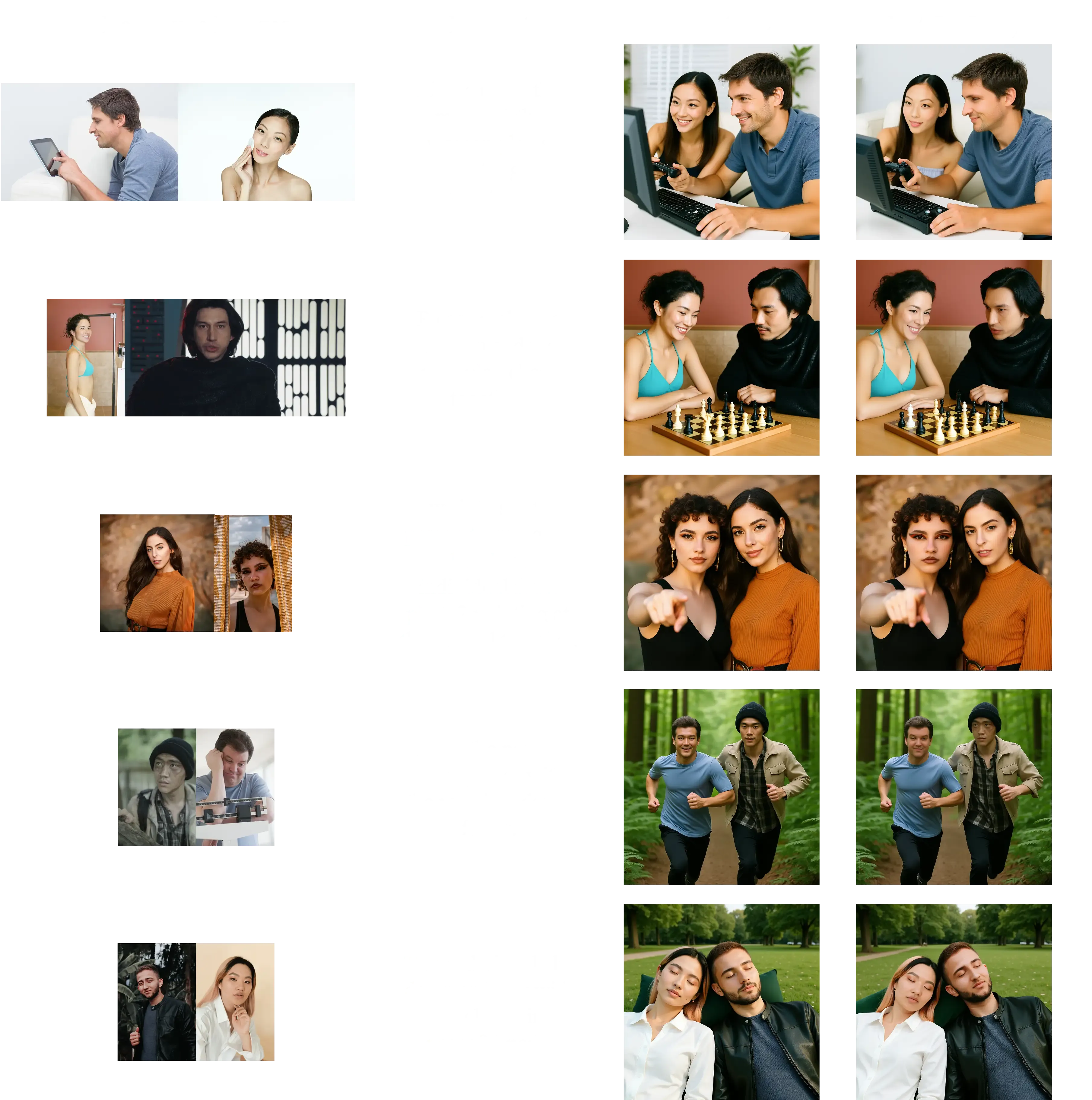
The team reports strong identity consistency and lower confusion across many tests. Results look stable for both single-identity and multi-identity prompts. Public demos are available for UMO-UNO and UMO-OmniGen2 on the project page.
The Technology Behind It
-
Global matching: UMO matches many references to the right outputs at the same time.
-
Reward learning: It teaches the diffusion model to pick results that preserve the right identity.
-
Data scale: It was trained with a large set of real and synthetic reference images.
-
Backbone friendly: It plugs into UNO and OmniGen2 through LoRA files.
-
Metrics: It adds a new score to check when faces get mixed up.
FAQ
Who made UMO?
UMO is made by the UXO Team at ByteDance. The authors are Yufeng Cheng, Wenxu Wu, Shaojin Wu, Mengqi Huang, Fei Ding, and Qian He. You can read their paper on the linked project page.
Do I need special hardware?
A modern GPU will help a lot, as this is a diffusion model workflow. CPU-only is not practical for real use. Start with a single GPU setup.
Can I use UMO without coding?
Yes. You can try the Gradio demo and the ComfyUI workflows. Both options let you test with clicks and simple inputs.
What models does it support today?
The release includes UMO built on UNO and on OmniGen2. Both have LoRA files and examples to start right away.
Where can I learn more?
The project page and GitHub have the latest releases, weights, and guides. For extra context and friendly write-ups, see posts on our blog.
Image source: UMO: Unified Multi-modal Optimization for Urban Mobility